Question Labels, available on the Logic tab of each of your questions, allow you to create shortnames for questions in your survey. These shortnames are great to use in reports, exports, custom scripting, as well as when utilizing SPSS.
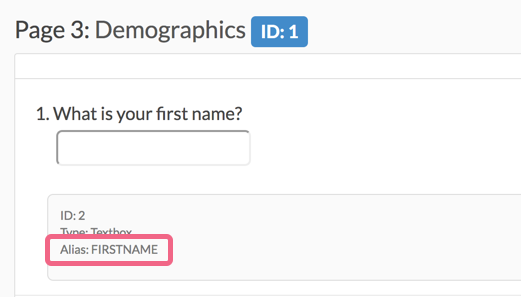
Add a Label to Your Questions
- Edit your question and go to the Logic tab.
- Scroll to the Label field.
- Enter your label and click Save Question.
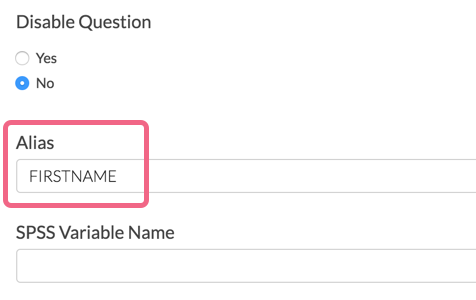
Tips for Choosing a Label Name
- Be consistent - All caps, all lowercase, underscores. Deciding on some conventions will make your life easier later, particularly if you plan to do advanced analysis.
- Be concise - Keep your variable names short and sweet.
- Be descriptive - Good variable names are descriptive. This makes your data easier to use later.
Add Labels for the Entire Survey in Once Place
If you weren't able to specify Question Labels while building your survey (or perhaps you forgot), click Results > Edit Reporting Values & Lables to access the Question Label editor. The editor will give you access to quickly edit all Question Labels in your survey!
View Labels on the Build Tab
There are two options that allow you to view your labels on the Build tab of your survey.
Question Metadata
The question metadata option will display as a banner below your question. In addition, the question ID and question type will display in the metadata banner.
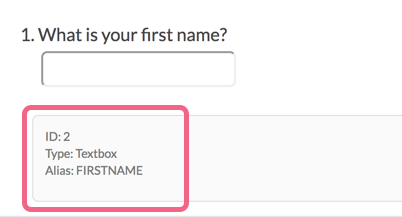
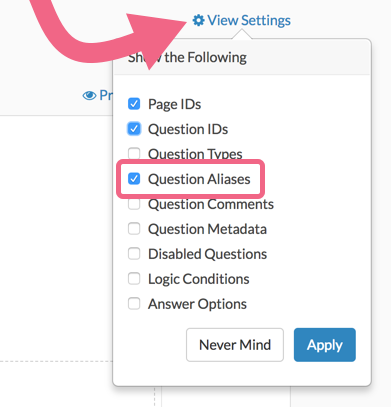
- To select this option, click View Settings in the top right corner above the first page of your survey.
- Select Question Metadata and click Apply.
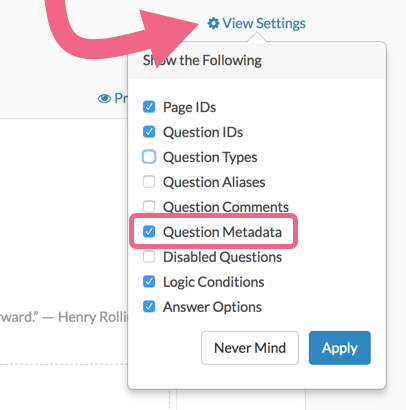
Question Labels
The question label option will display a grey badge with your labels in the bottom right corner of your question.
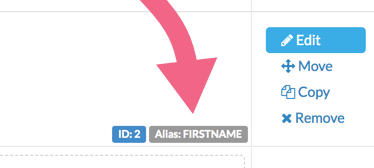
- To select this option, click View Settings in the top right corner above the first page of your survey.
- Select Question Labels and click Apply.
Use Question Labels in Your Reports
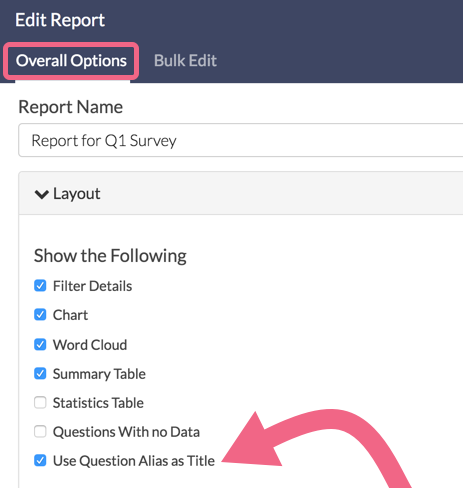
If you've added question labels to your questions, they will be available in Standard Reports to use in place of question titles.
To toggle your report to use Question Labels (when available), access Report Options > Layout and check the box corresponding to Use Question Labels as Title.
Labels are also available in Legacy Summary Reports to use in place of question titles. Within your Summary Report, click Customize Report and go to the Options tab. Under Report element titles select the option to Use labels (where specified).
Note: Labels are not supported in Legacy Summary Reports for Custom Group and Custom Table question types.
Use Question Labels in Exports
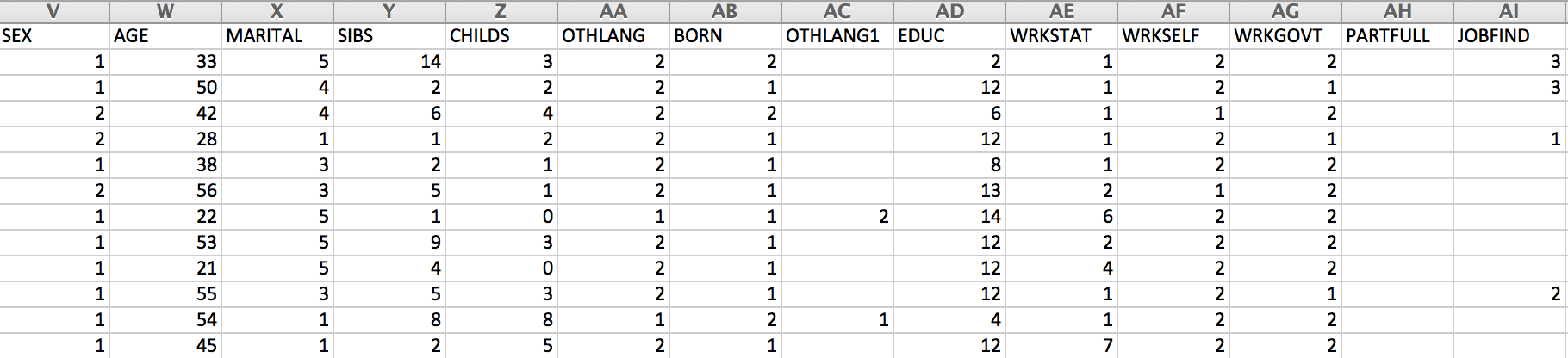
If you've added question labels to your questions, the CSV/Excel Export of your raw data will automatically use your labels in place of question titles as the column headers of your spreadsheet.
Use Question Labels in Merge Codes
Another benefit of using question labels is that labels can be used within merge codes in place of question IDs. In our example above, we assigned a label of FIRSTNAME to our textbox question with ID of 2.
A typical merge code for this question would be as follows (note that the question is referenced by its ID):
[question("value"), id="2"]
Since we have assigned a label to this question, we can substitute the ID with the label within the merge code, as follows:
[question("value"), id="FIRSTNAME"]
This method makes your merge codes more readable and more meaningful.
Use Question Labels in Custom Scripting
Finally, question labels can be used in custom scripting. Check out our Scripting with Question Labels Tutorial to learn more!
Why labels are much better to use in scripts
- You can use labels in your script that mean something.
- Your scripts can be re-used more easily across surveys. Question IDs change, labels do not!
- Your code will be more readable!
Compatibility
The majority of Alchemer questions support adding a Question Label/shortname to the overall question. The below questions are not compatible:
Certain questions, notably grids, allow for adding Question Labels to the overall question as well as the individual grid rows. The following questions allow for this configuration:
Grid questions with specific answer option labels are not compatible with an excel export, and are only intended for use with SPSS.
It's import to note that certain questions that allow for rows do not allow for adding Question Labels to the individual rows:
