The Alchemer Survey Redshift Integration is available on our Business Platform. If you're interested in enabling this integration, please contact us for more information
Alchemer Survey Redshift Integration
At a high level, Alchemer's integration with Amazon Redshift allows you to:
- Pull data from a Redshift table into Alchemer to personalize and target your surveys.
- Push survey response data into a Redshift table for downstream reporting or analytics.
- Update specific rows in Redshift based on survey responses, maintaining data accuracy and minimizing manual entry.
This integration empowers your team to use real-time data to inform survey design and ensures the feedback you collect flows back into your systems of record—automatically and securely.
Integration Set-Up
Adding an Integration Action
1. Select an existing survey or create a new survey. Then navigate to the Survey Builder.
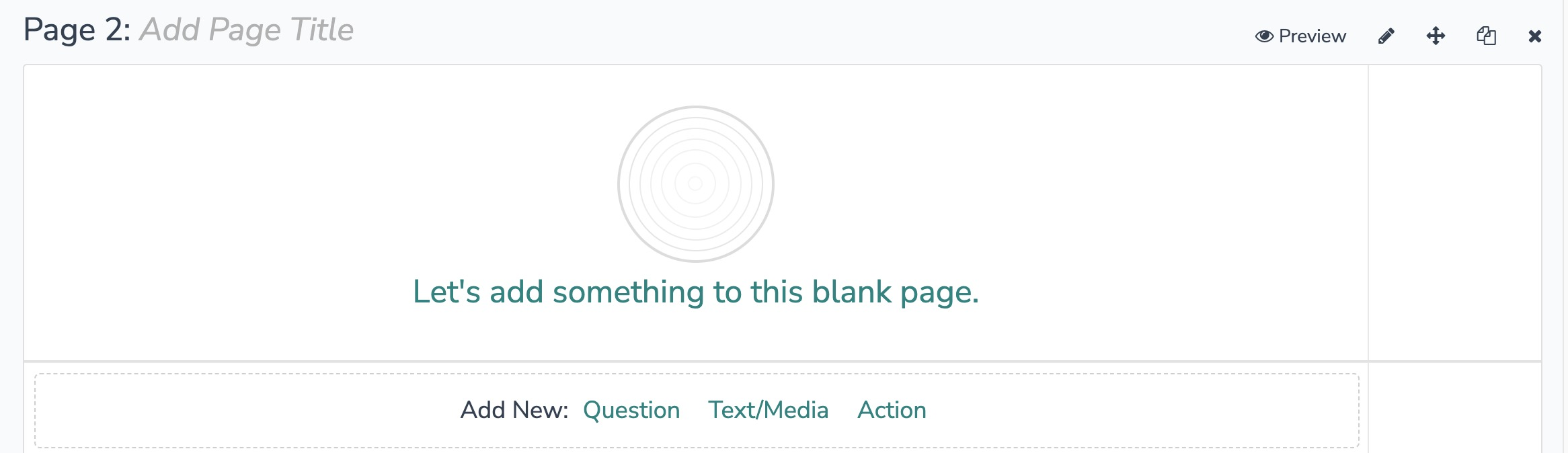
2. Click "Add New: Action"
3. In the Add Action modal, scroll down to Integrations. Then click "Add" for one of your purchased integrations.
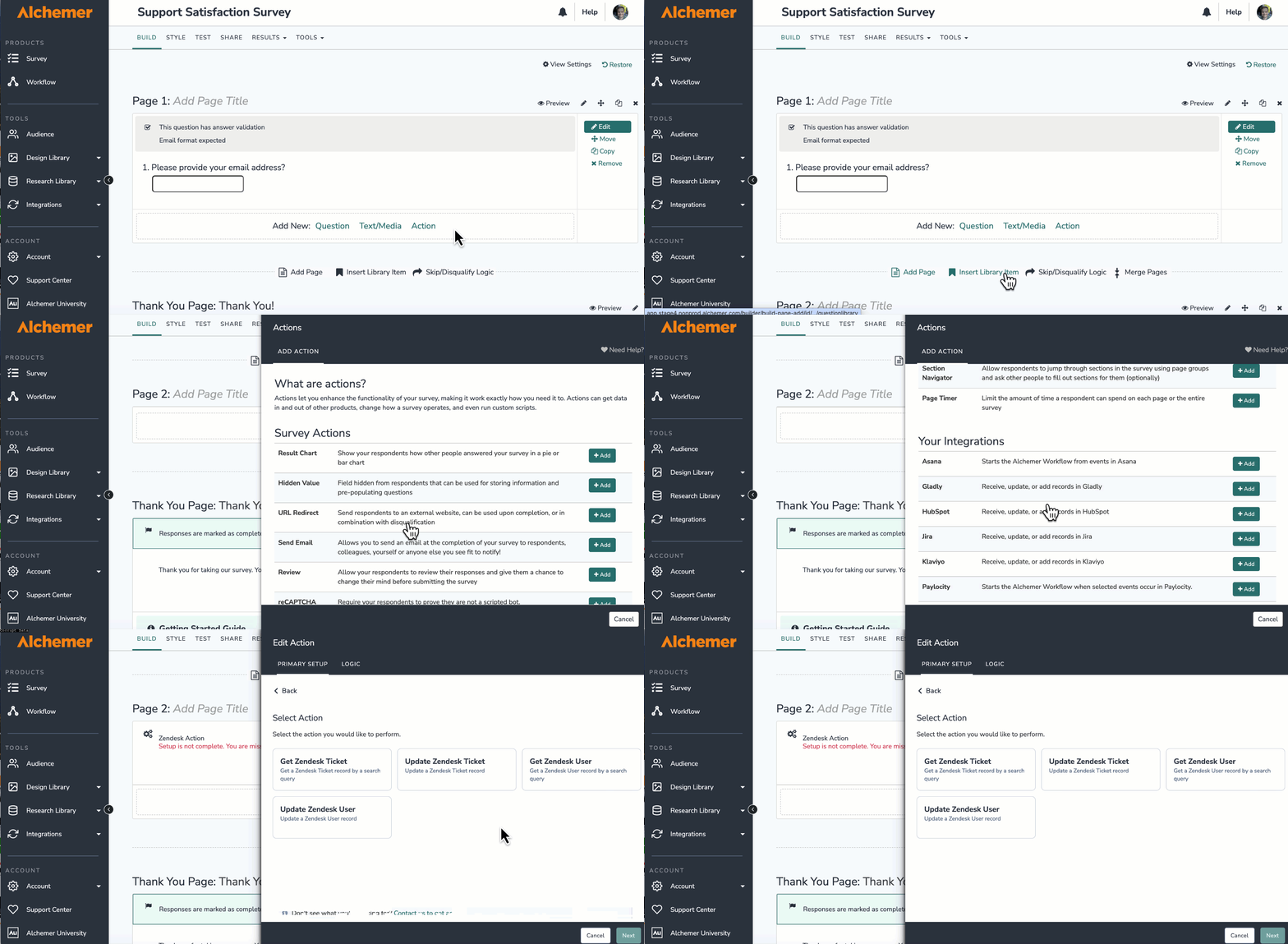
If you haven't purchased any additional integrations, you will see the below screen:

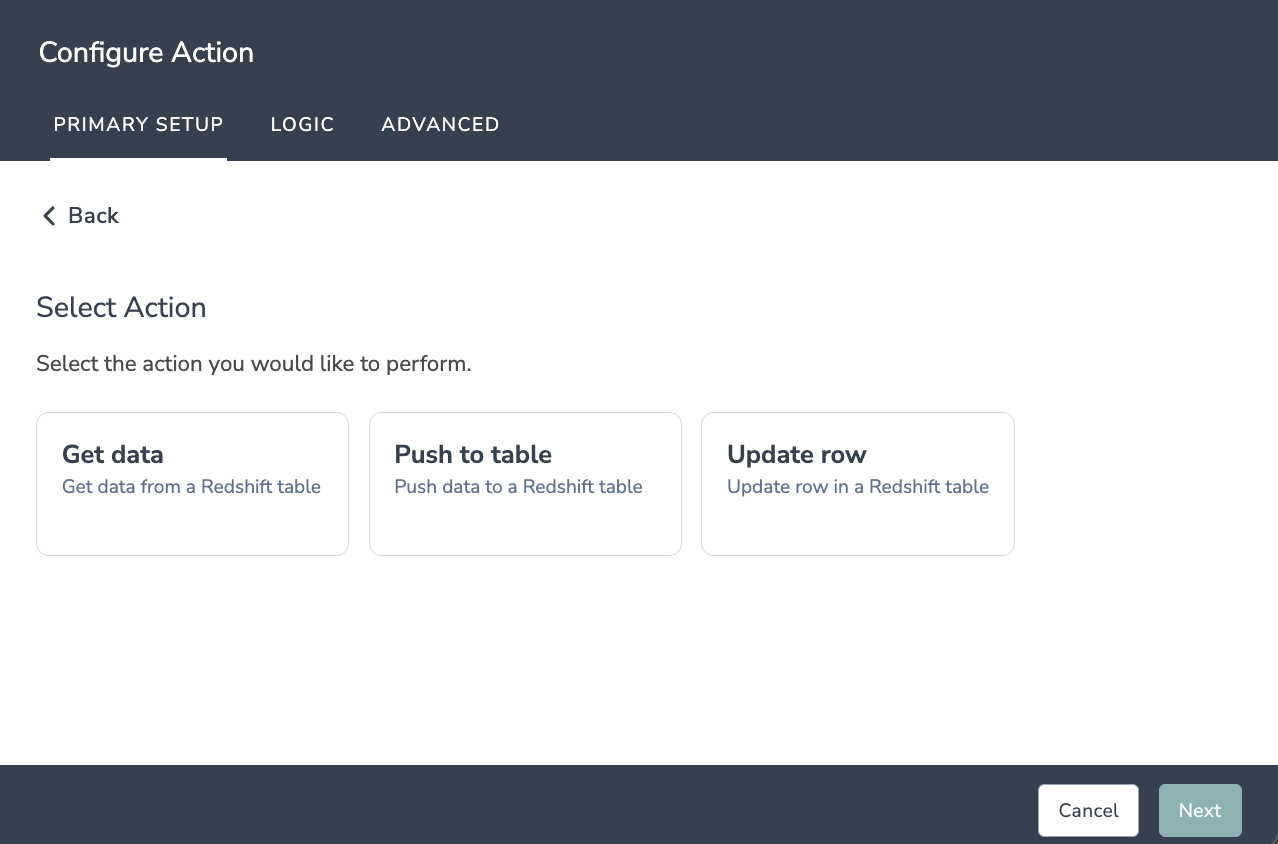
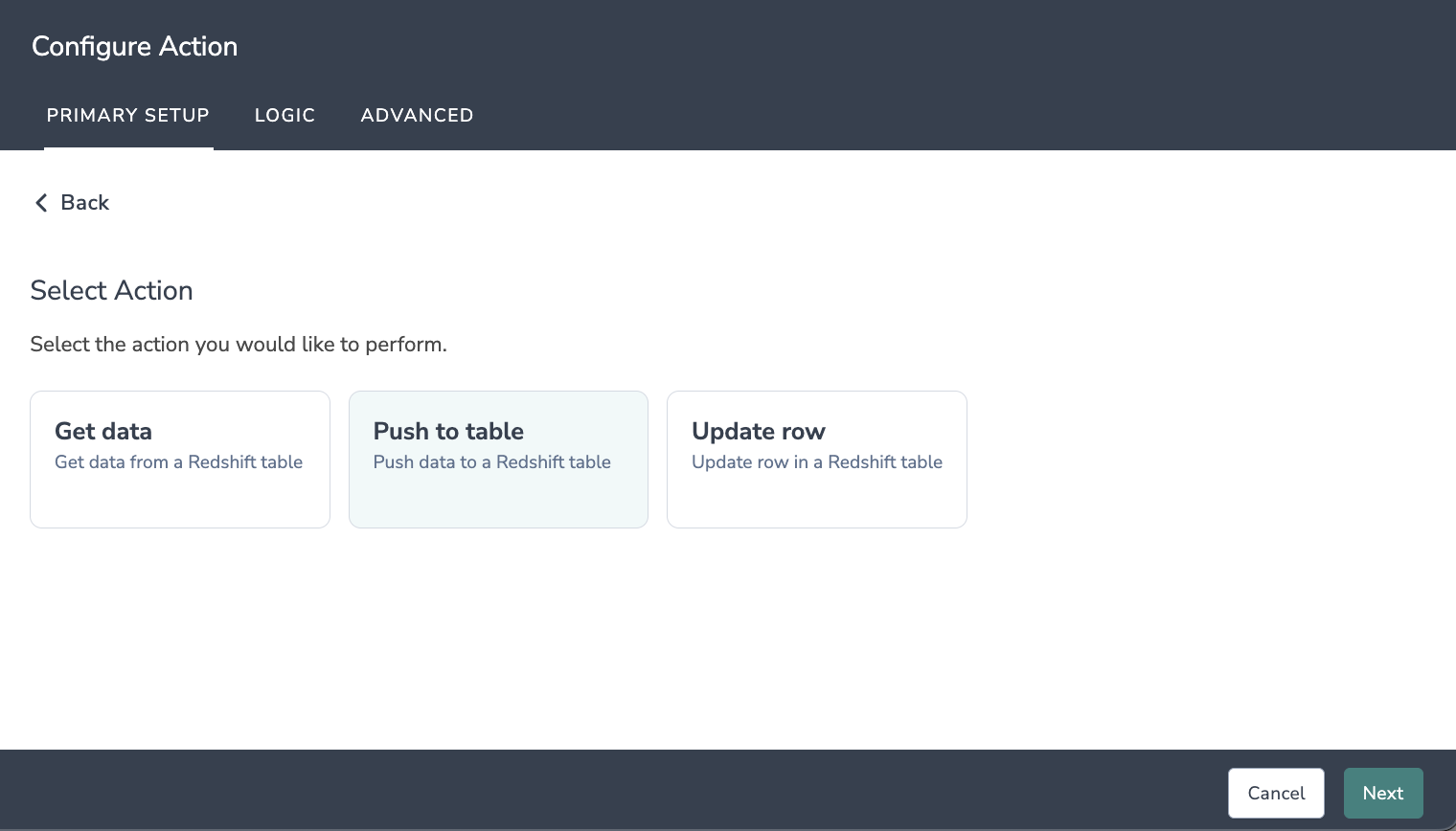
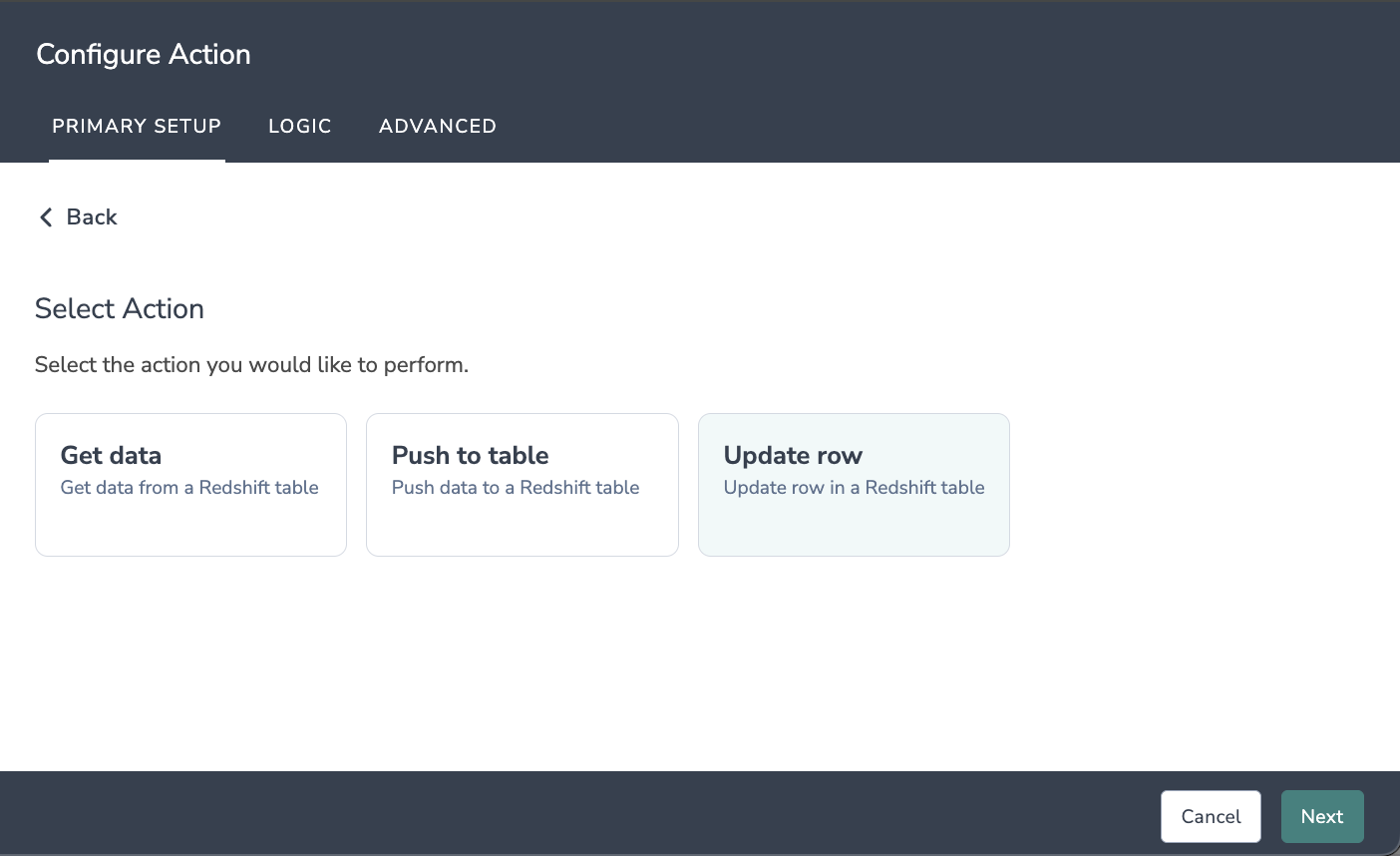
4. Select the action you would like to perform. You can either:
Configuration: Get Data from Redshift
Before you begin, you'll need:
- Your API user key and secret
- Fields in this workflow used to find the row in Redshift
- To select the Redshift fields you would like to return
1. Select Get Data as your action.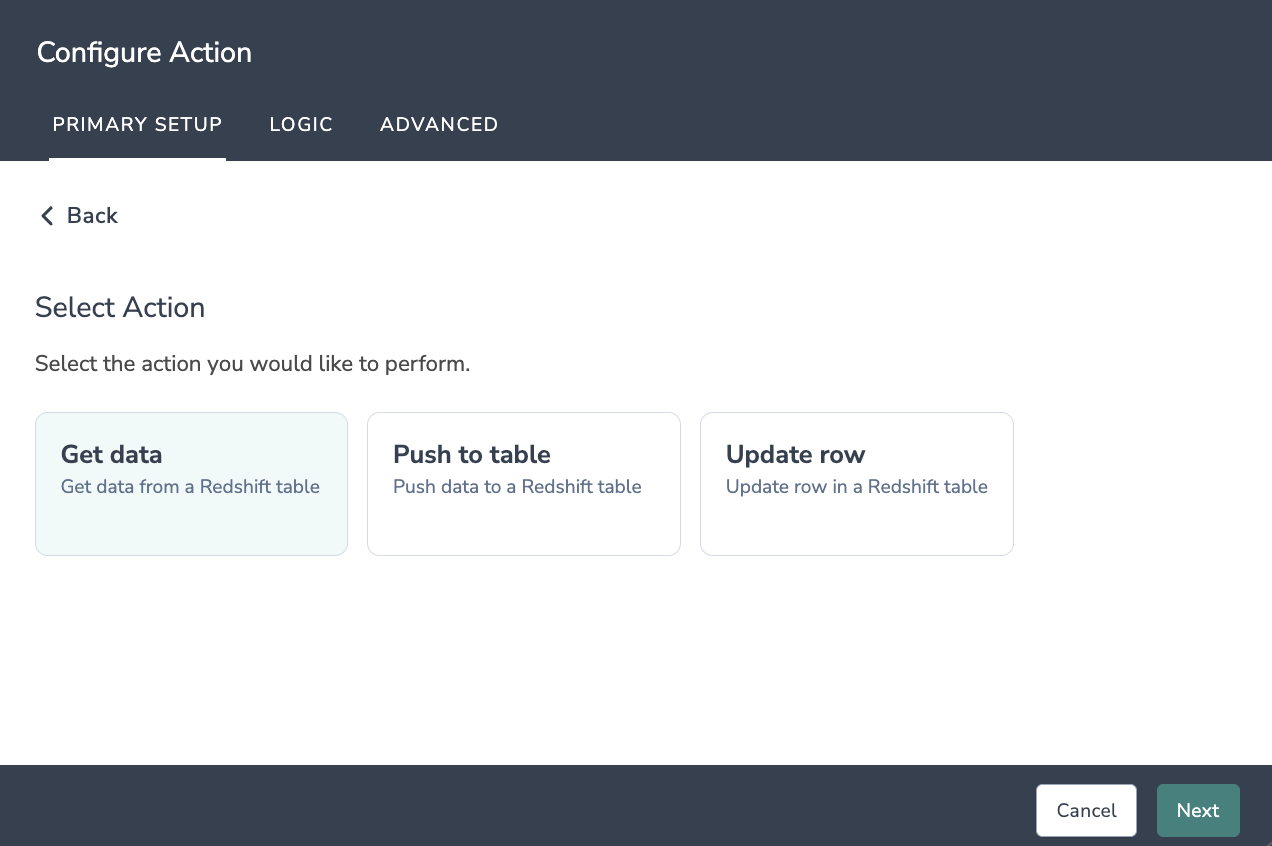
2. Hit "Next" on the overview screen.
3. Connect your Redshift account.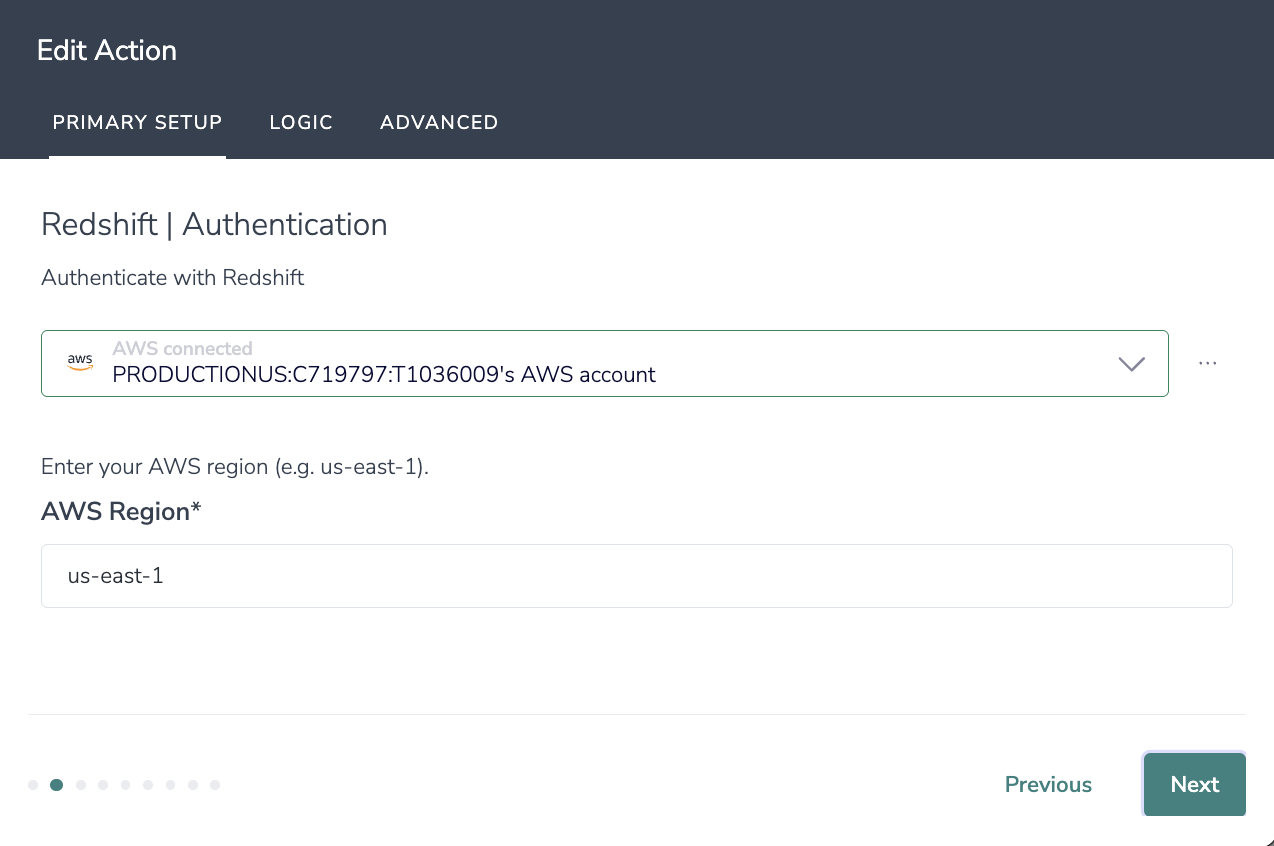
4. Choose the Redshift workgroup that you would like to use to write the queries (e.g., Email Address or User ID).
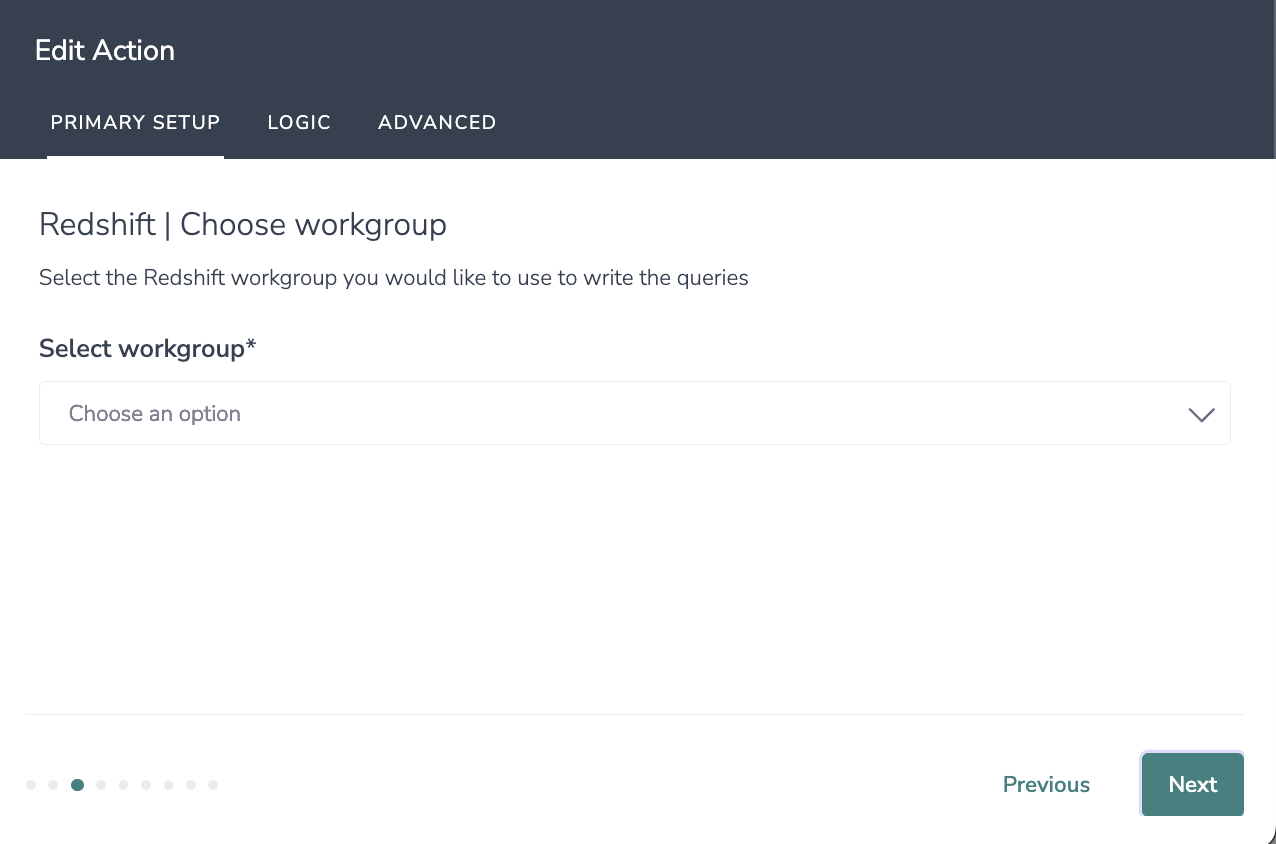
5. Map the Redshift columns you want to retrieve to fields in your survey. These can be Hidden Values or survey questions.
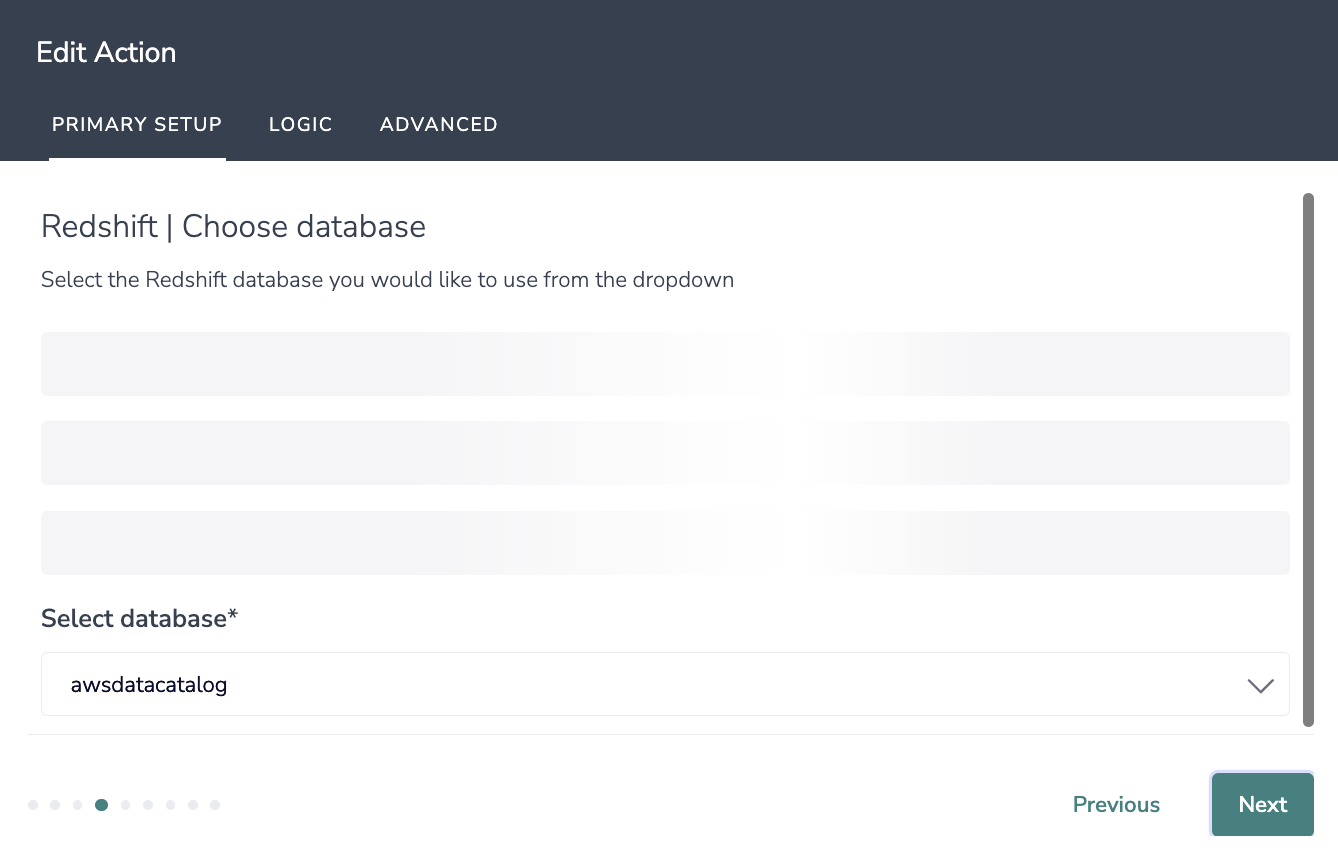
6. Select the Redshift schema you would like to use from the dropdown.
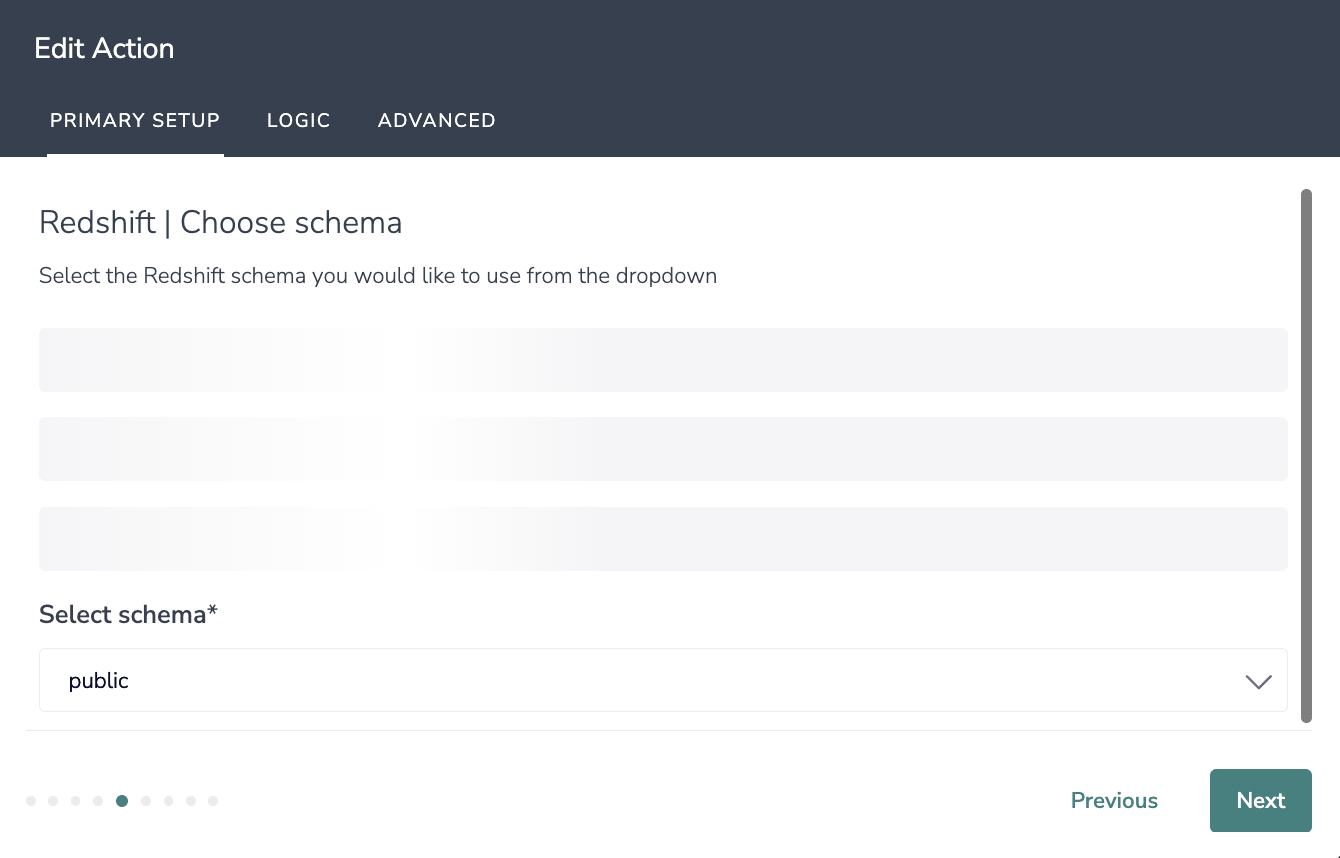
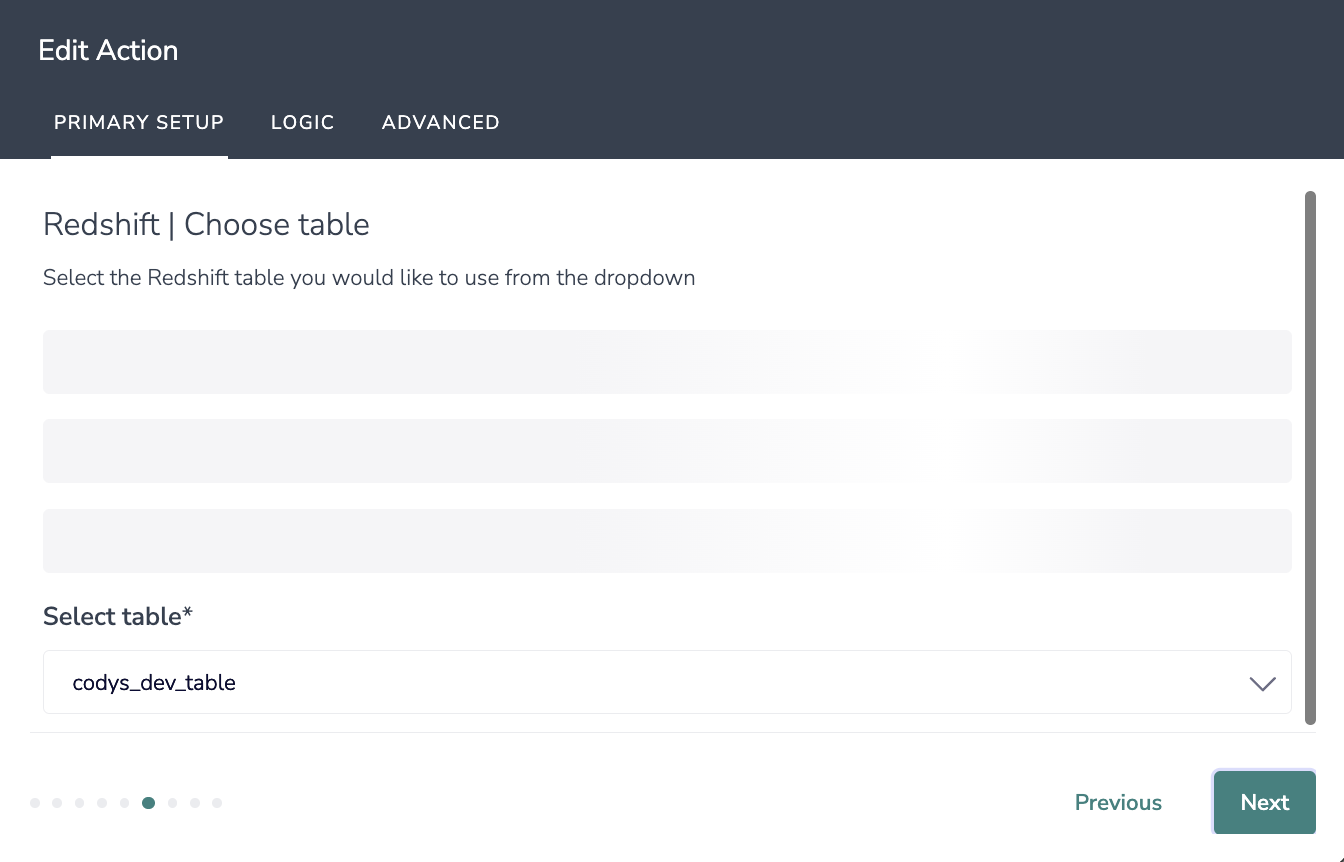
7. Select the Redshift table you would like to use from the dropdown.
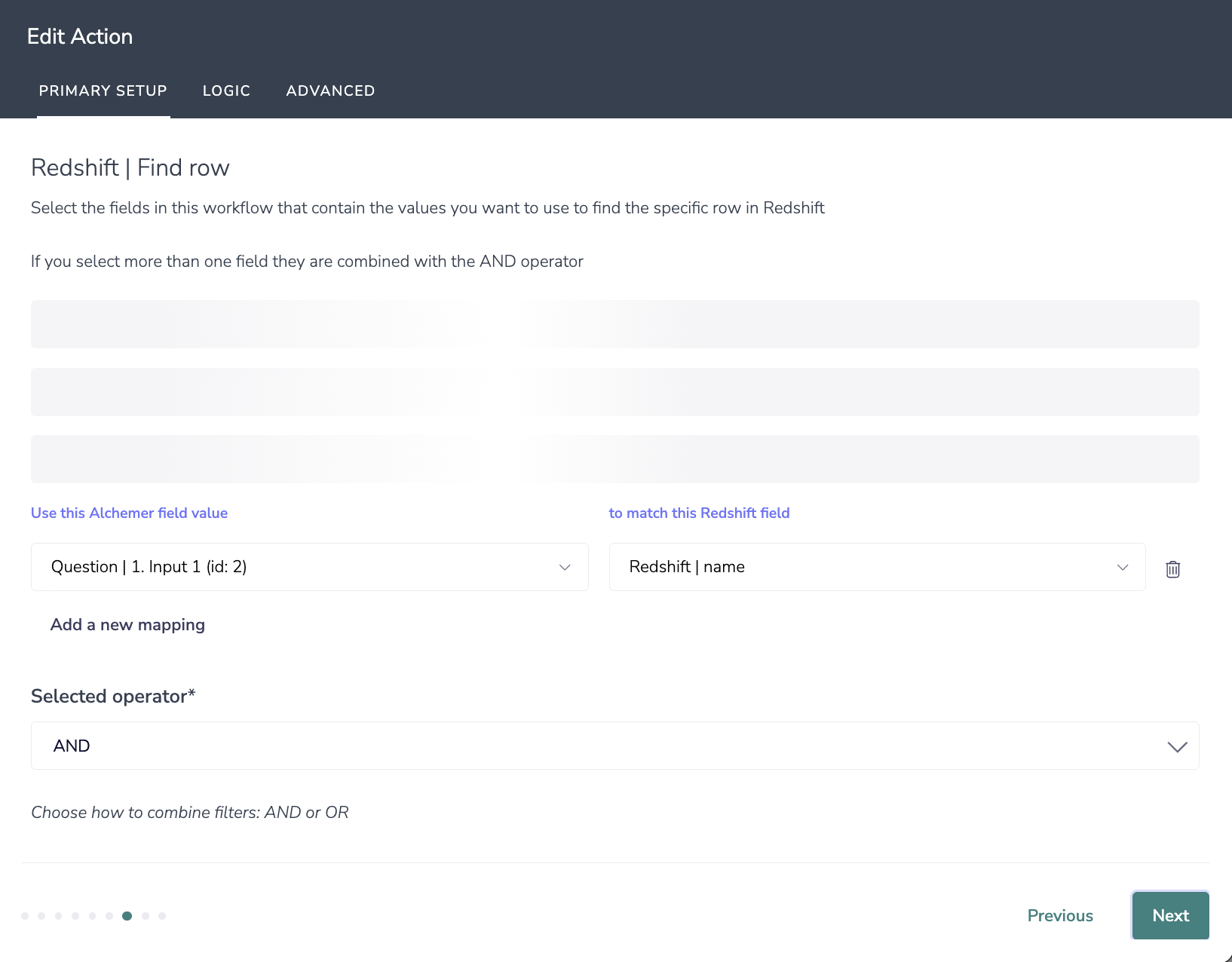
8. Select the fields in this workflow that contain the values you want to use to find the specific row in Redshift.
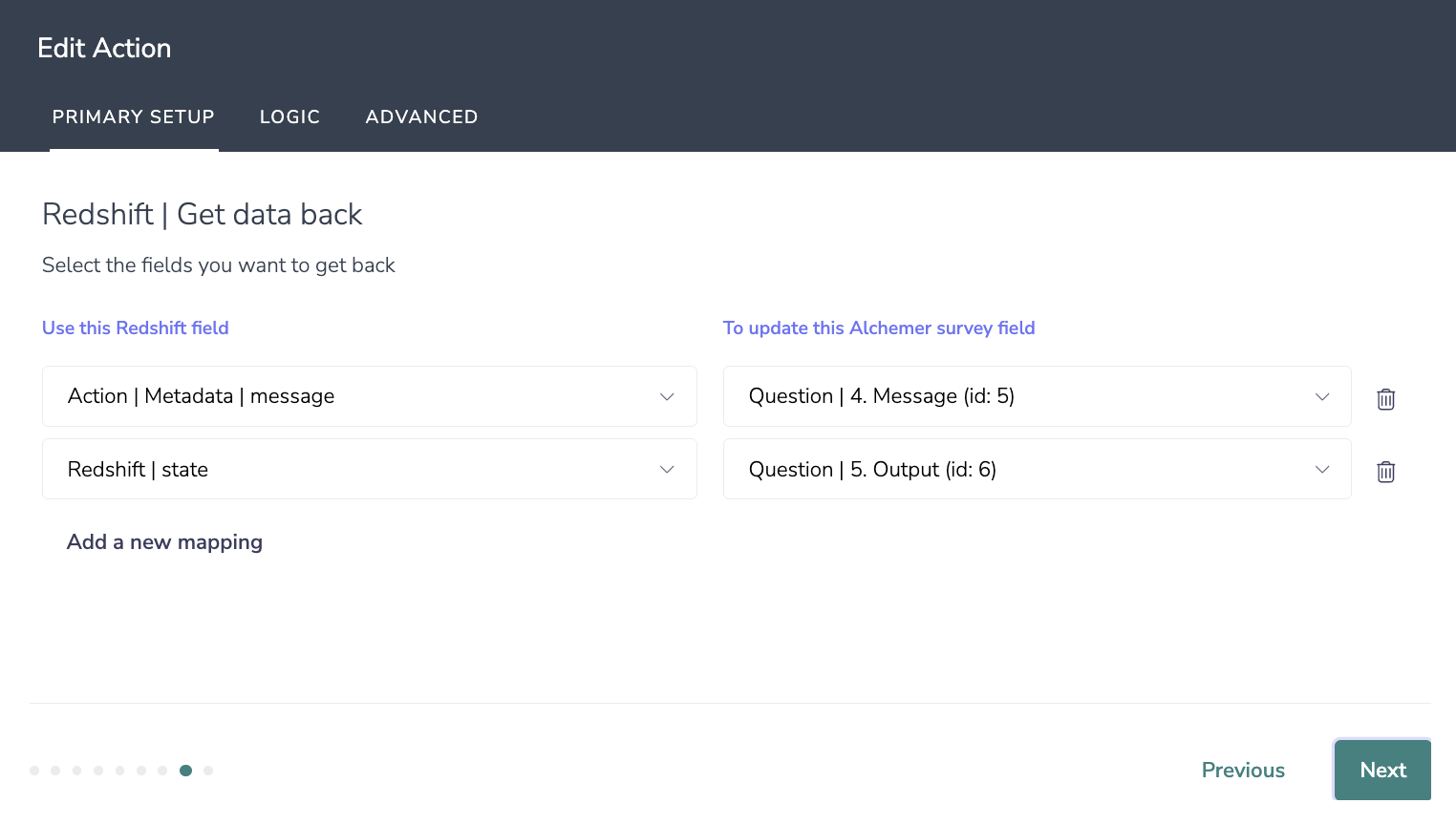
9. Select the fields you want to get back.
10. Click Save. Setup is complete.
Configuration: Push Data to a Redshift Table
Before configuring this Redshift Integration action you will need:
- Your API user key and secret
- Fields in this survey that contain the data you want to use to insert into your Redshift table
1. Select Push to Table as your action.
2. Hit "Next" on the overview screen.
3. Connect your Redshift account.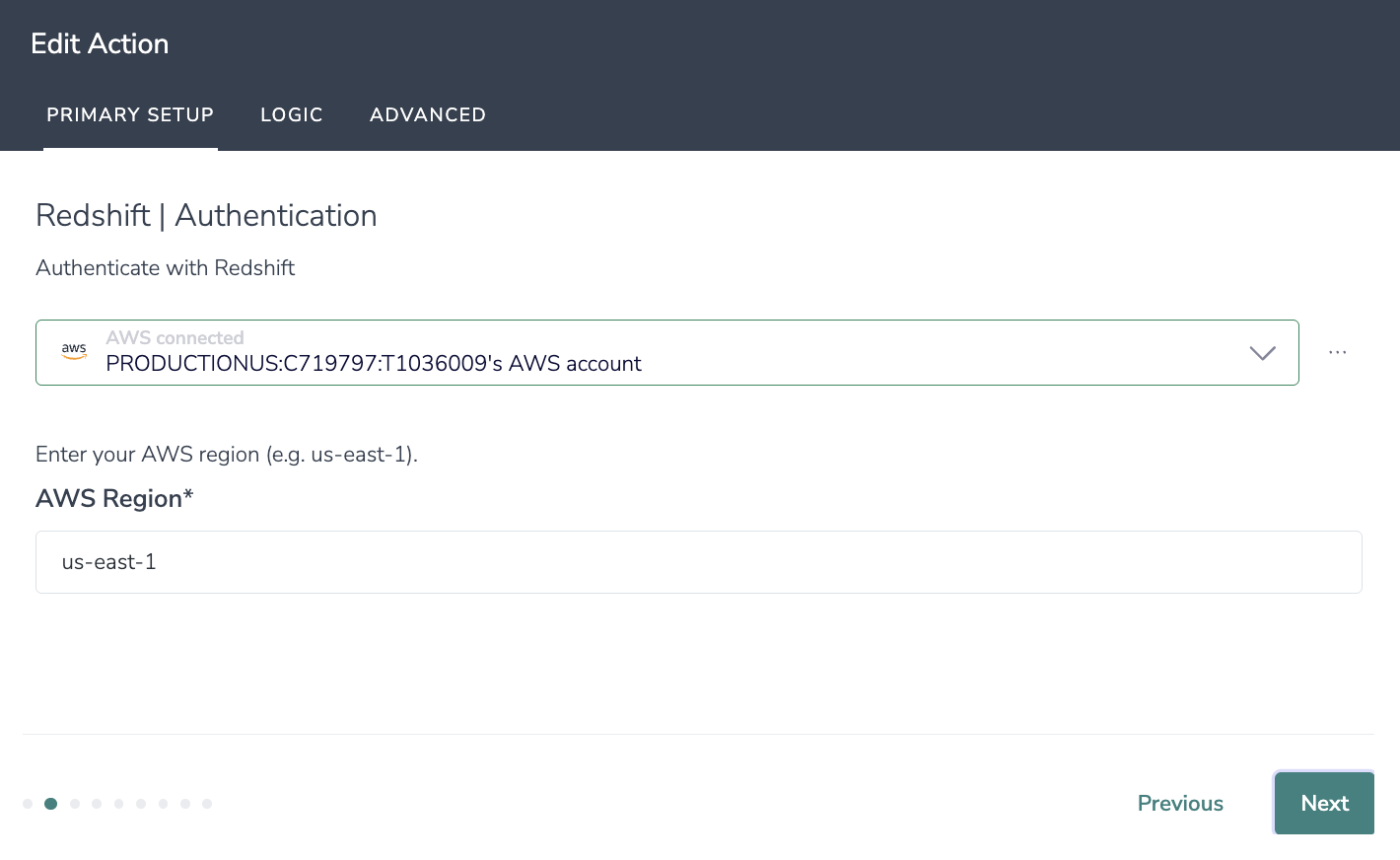
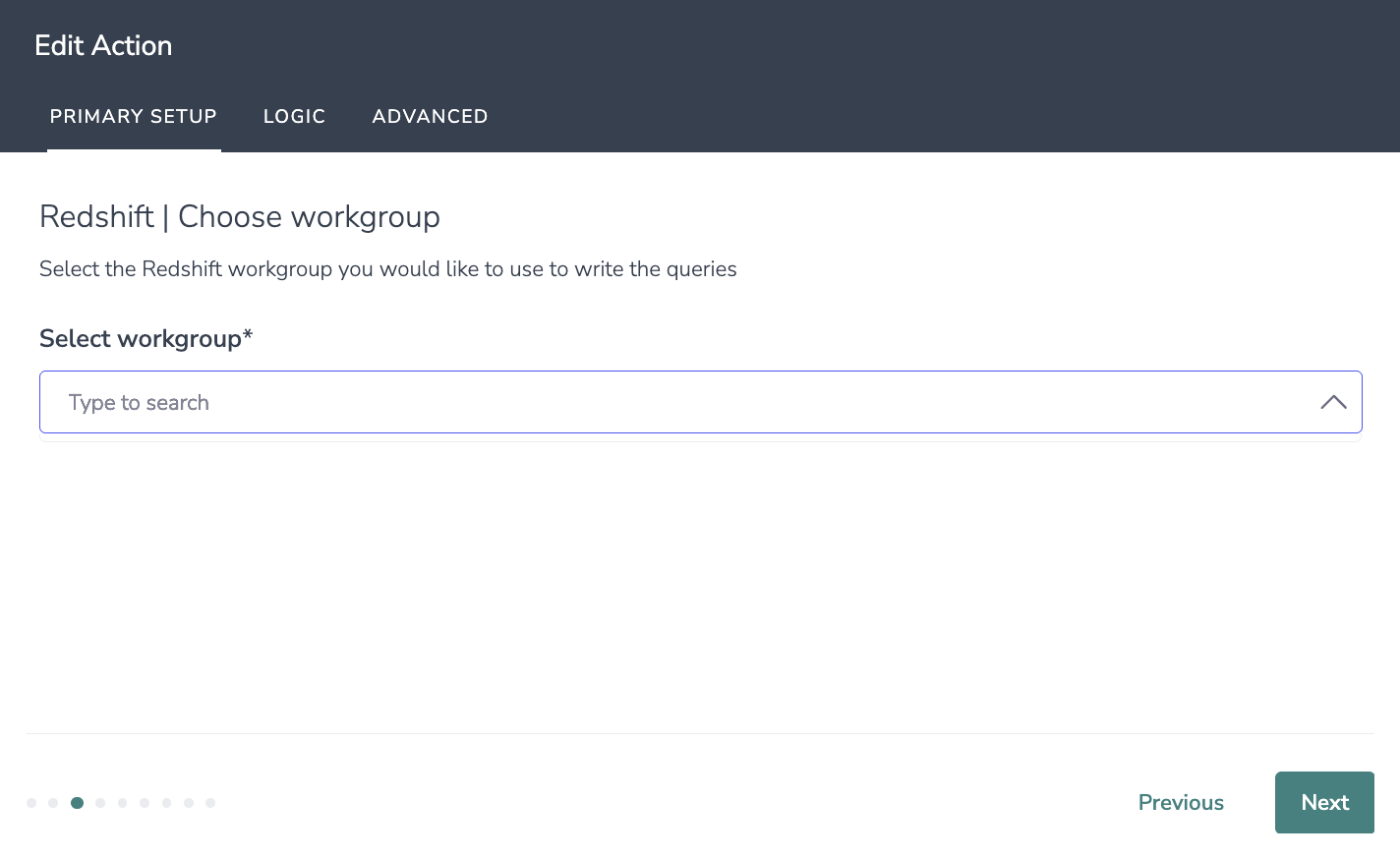
4. Select the Redshift workgroup you would like to use to write the queries.
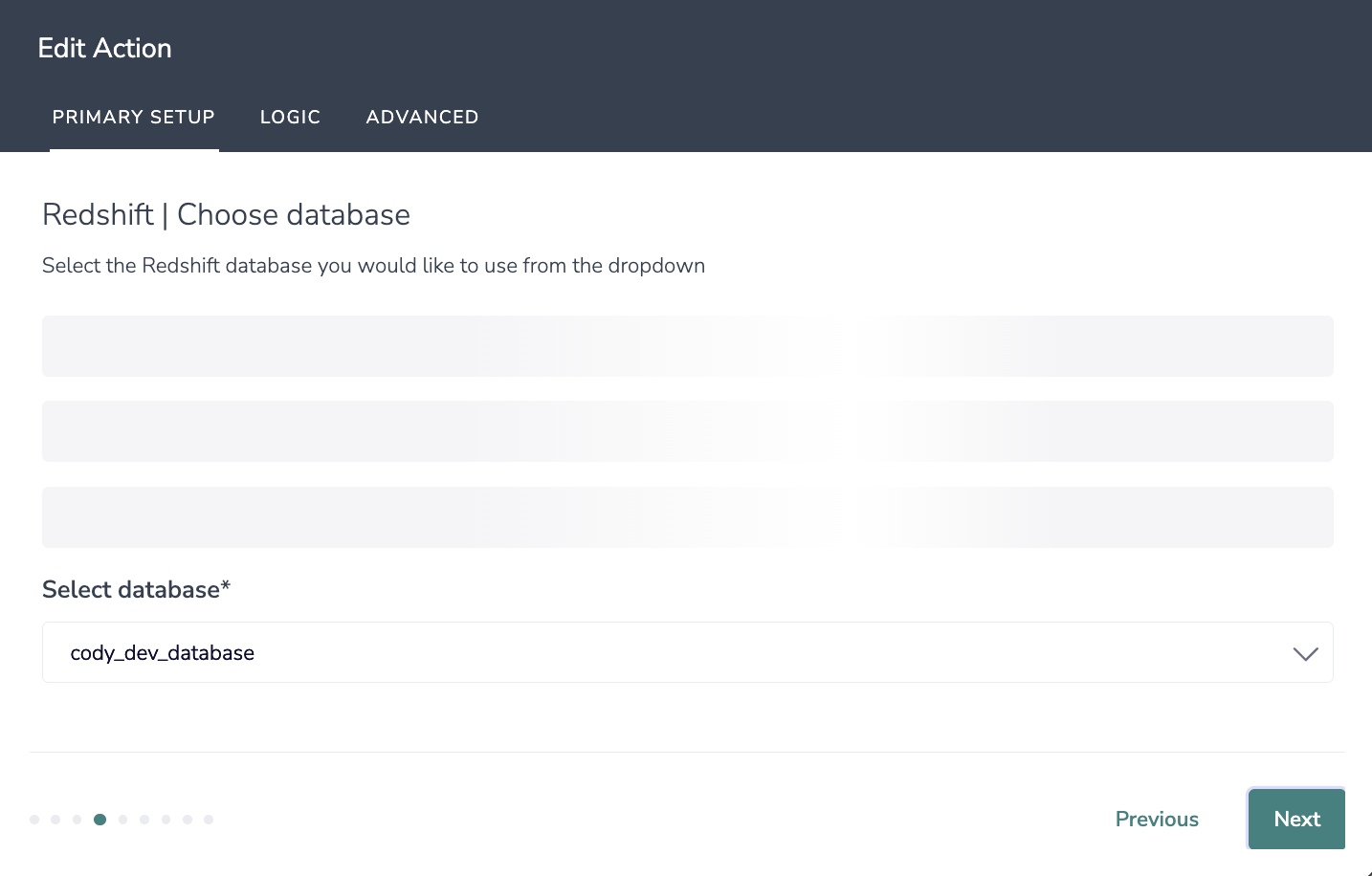
5. Select the Redshift database you would like to use from the dropdown.
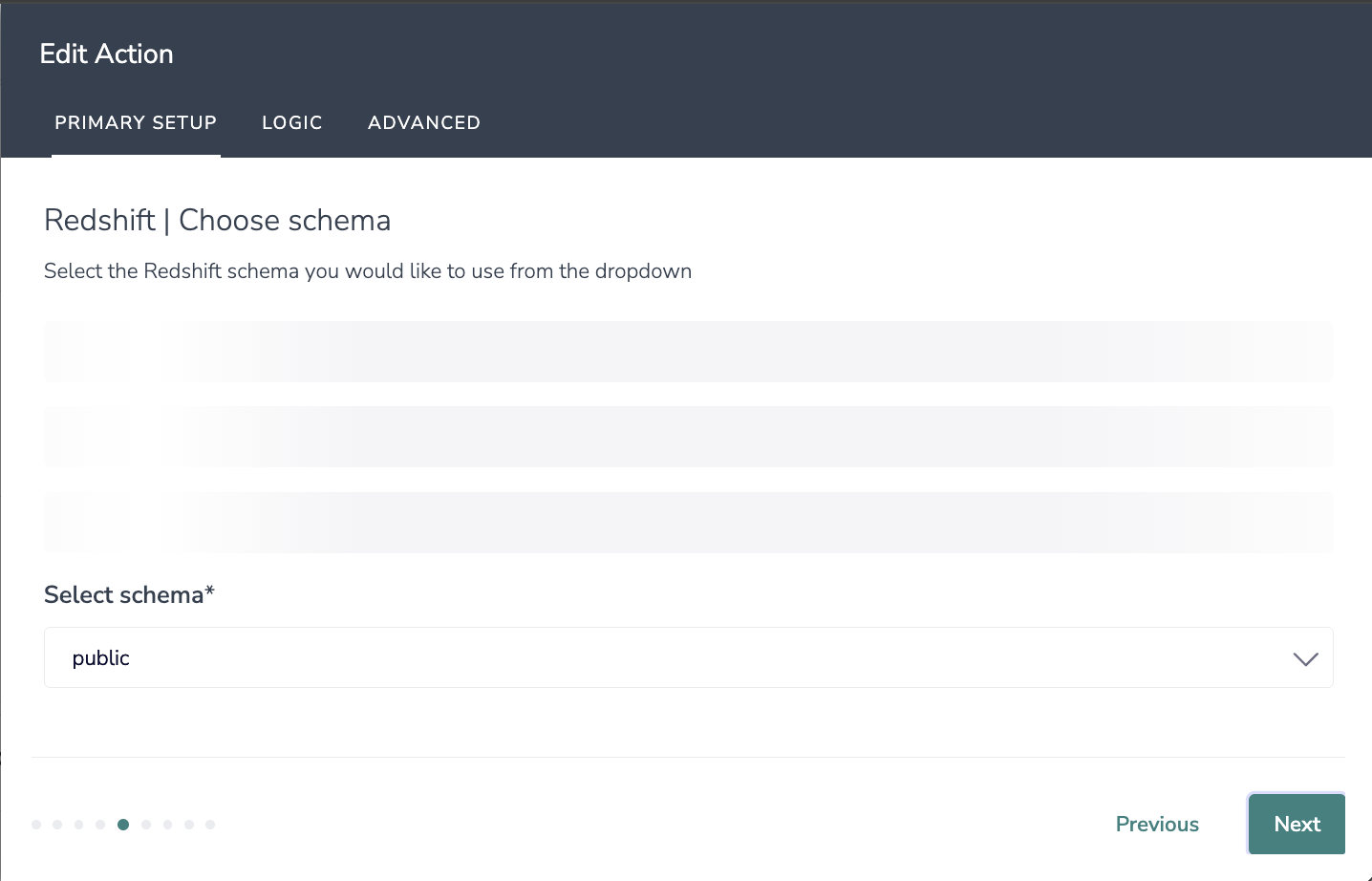
6. Select the Redshift schema you would like to use from the dropdown.
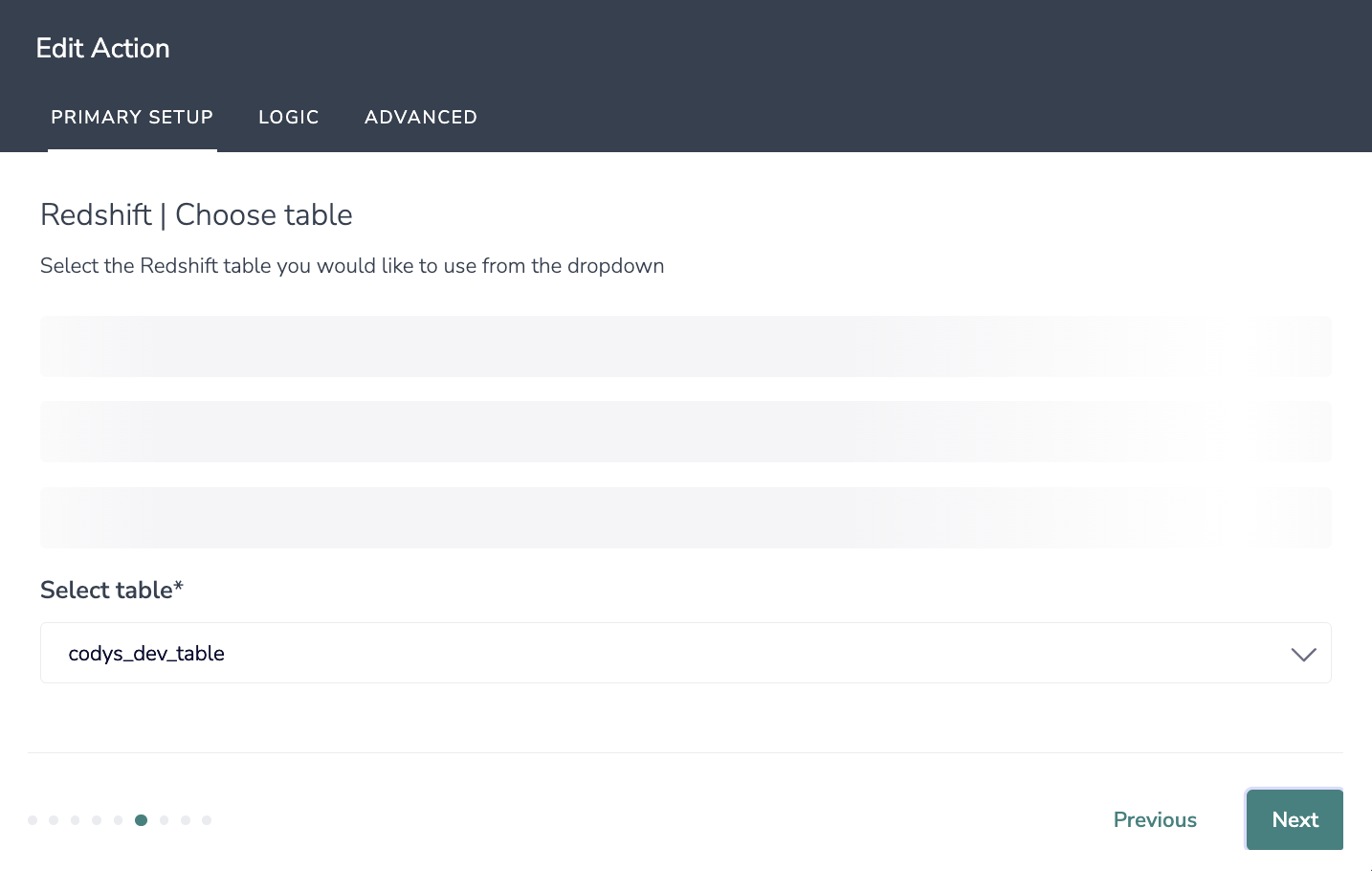
7. Select the Redshift table you would like to use from the dropdown.
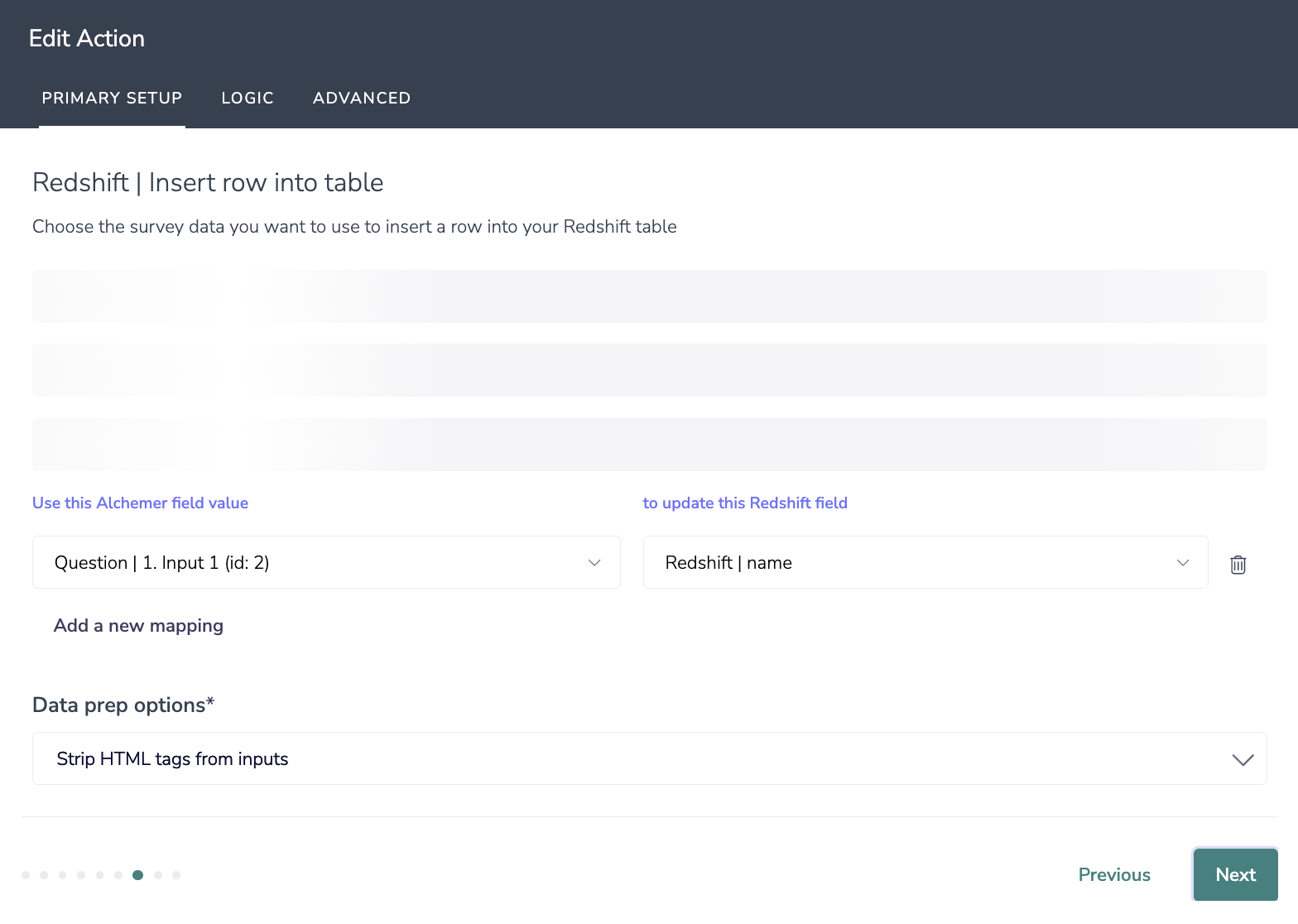
8. Choose the survey data you want to use to insert a row into your Reshift table.
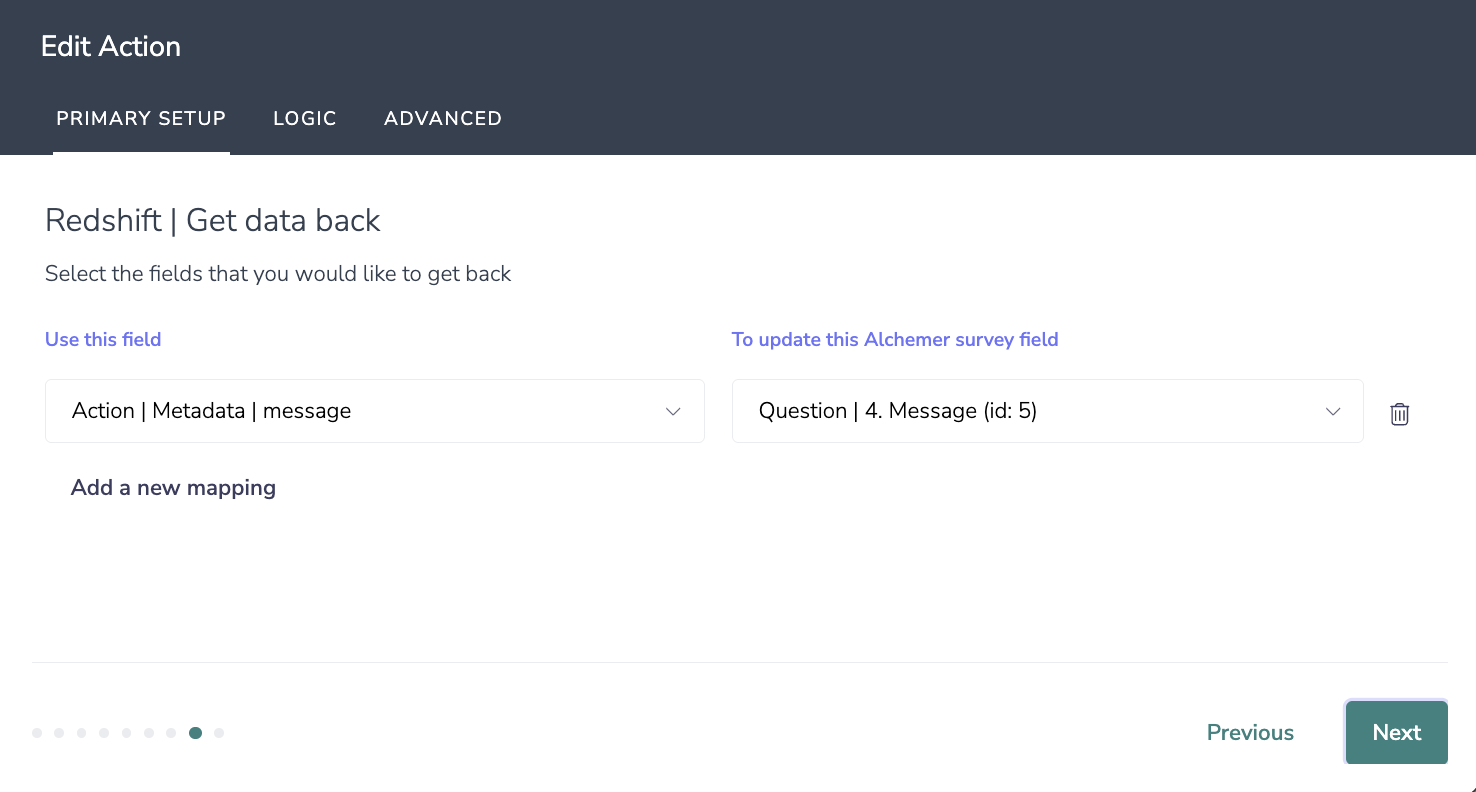
9. Select the fields that you would like to get back.
10. When complete, click "Save" to finalize the Integration.
Configuration: Update a Row in Redshift
Before configuring this Redshift Integration action you will need:
- Your API user key and secret
- Fields in this survey used to find the row in Redshift
- Fields in this survey that contain the data you want to use to update the row in your Redshift table
1. Select Update Row as your action.
2. Hit "Next" on the overview screen.
3. Connect your Redshift account.
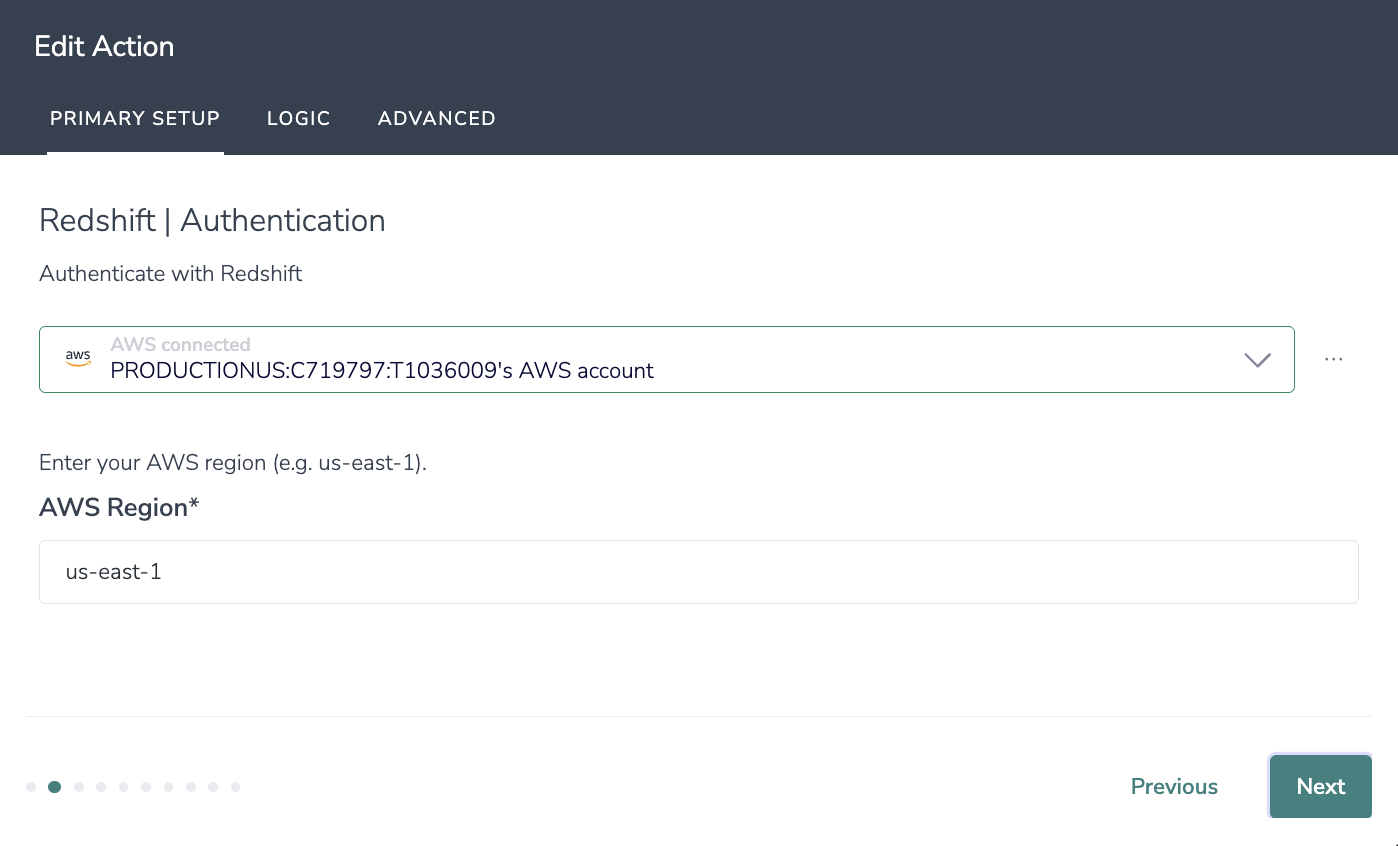
4. Select the Redshift workgroup you would like to use to write the queries.
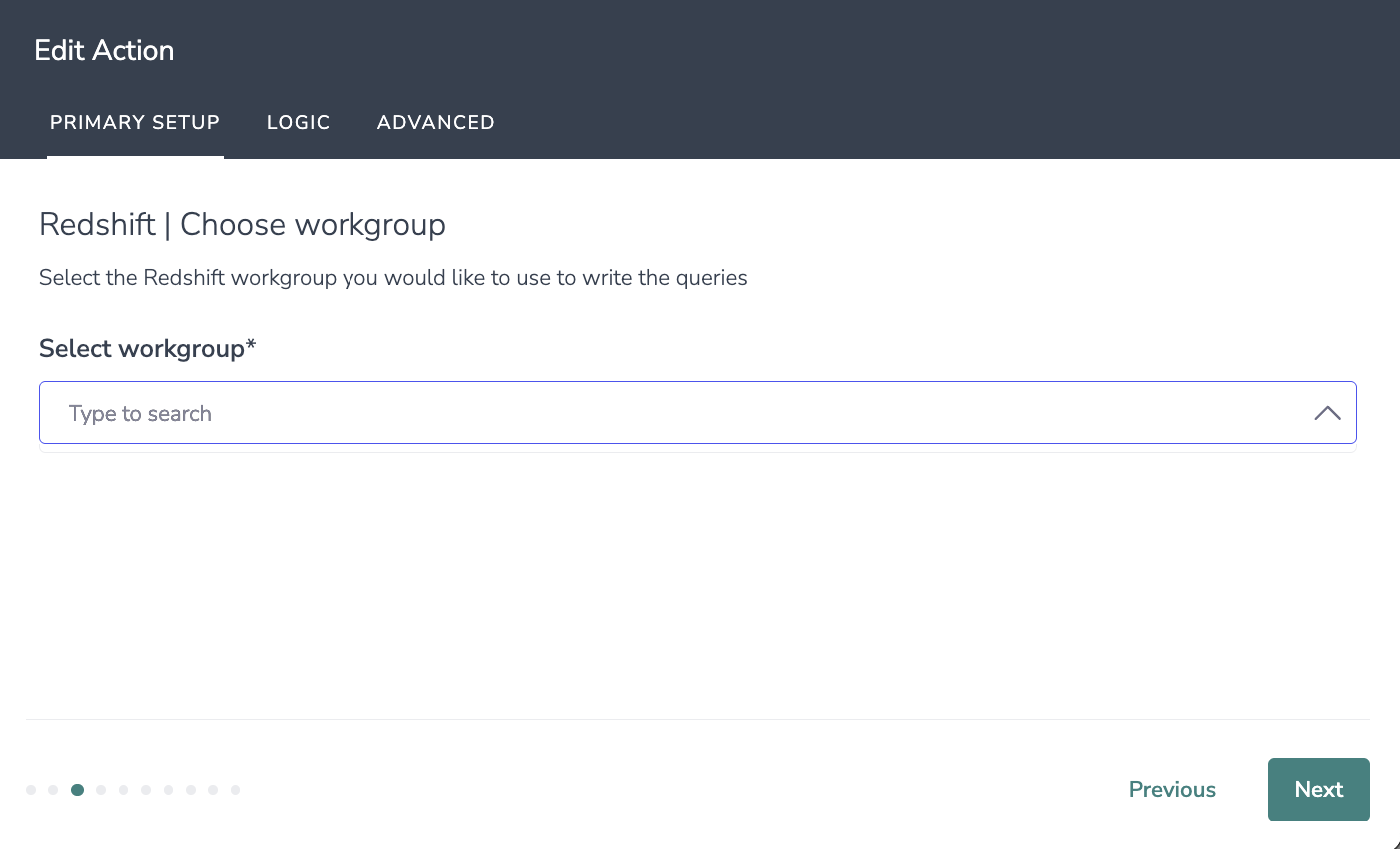
5. Select the Redshift database you would like to use from the dropdown.
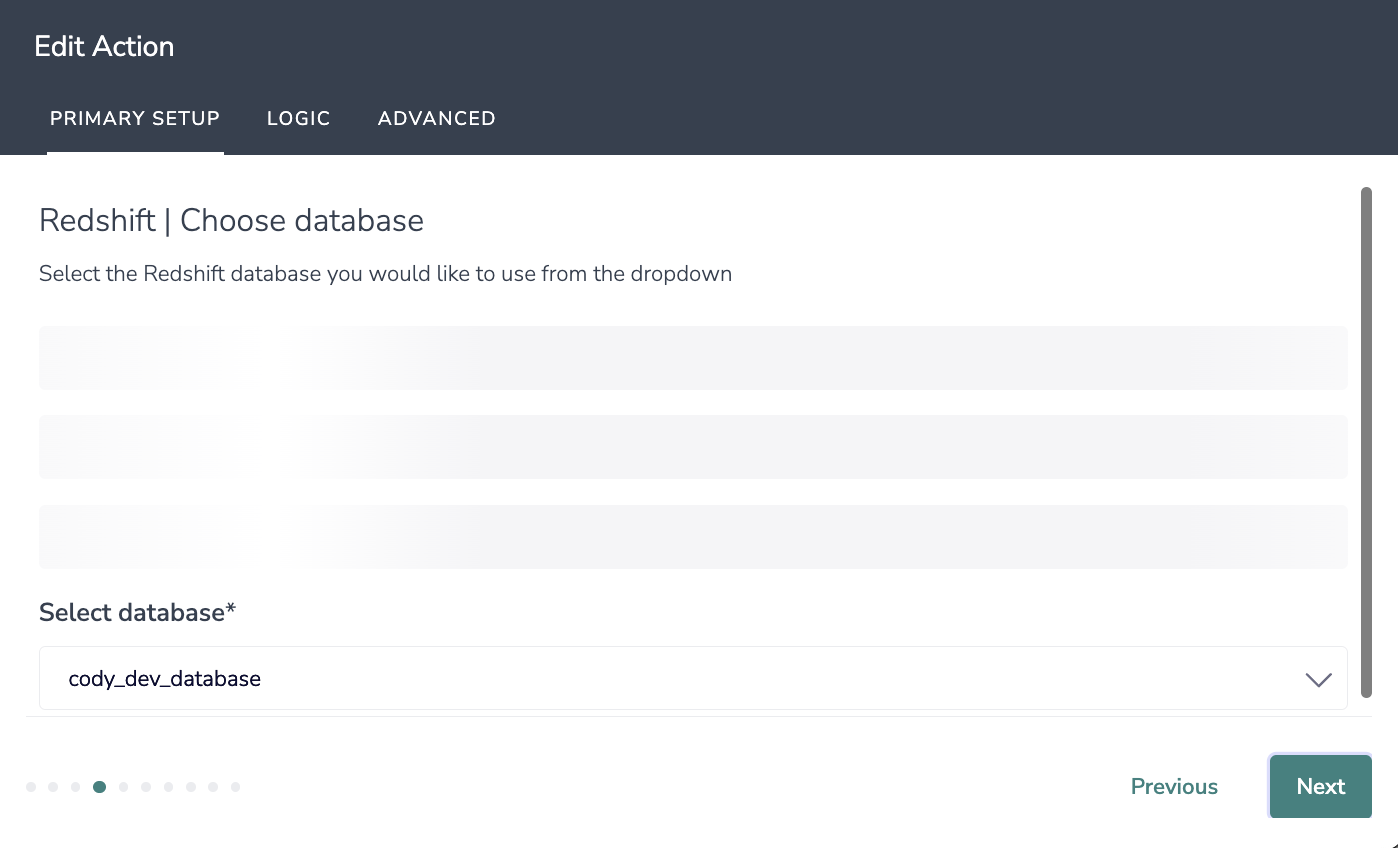
6. Select the Redshift schema you would like to use from the dropdown.
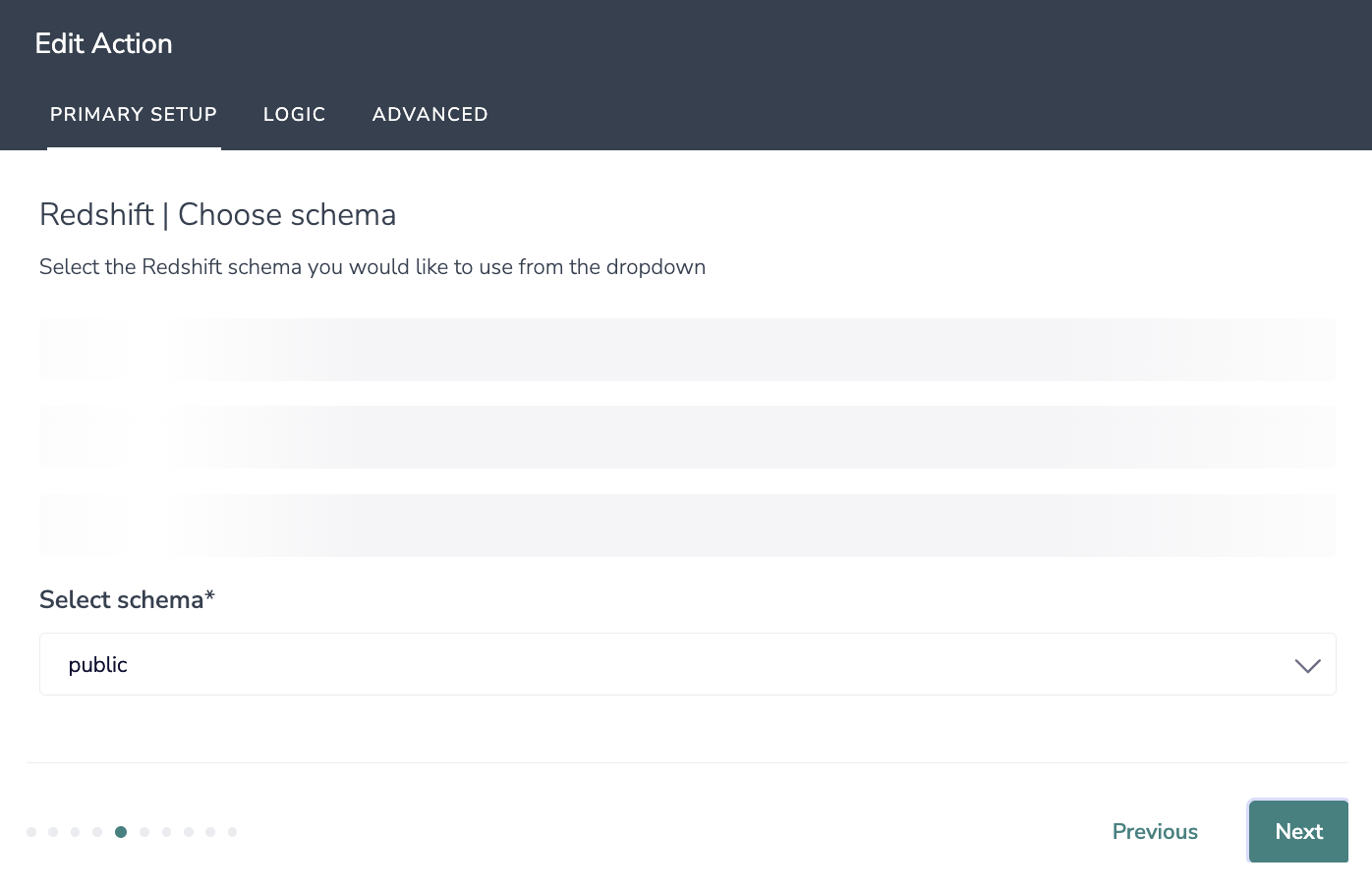
7. Select the Redshift table you would like to use from the dropdown.
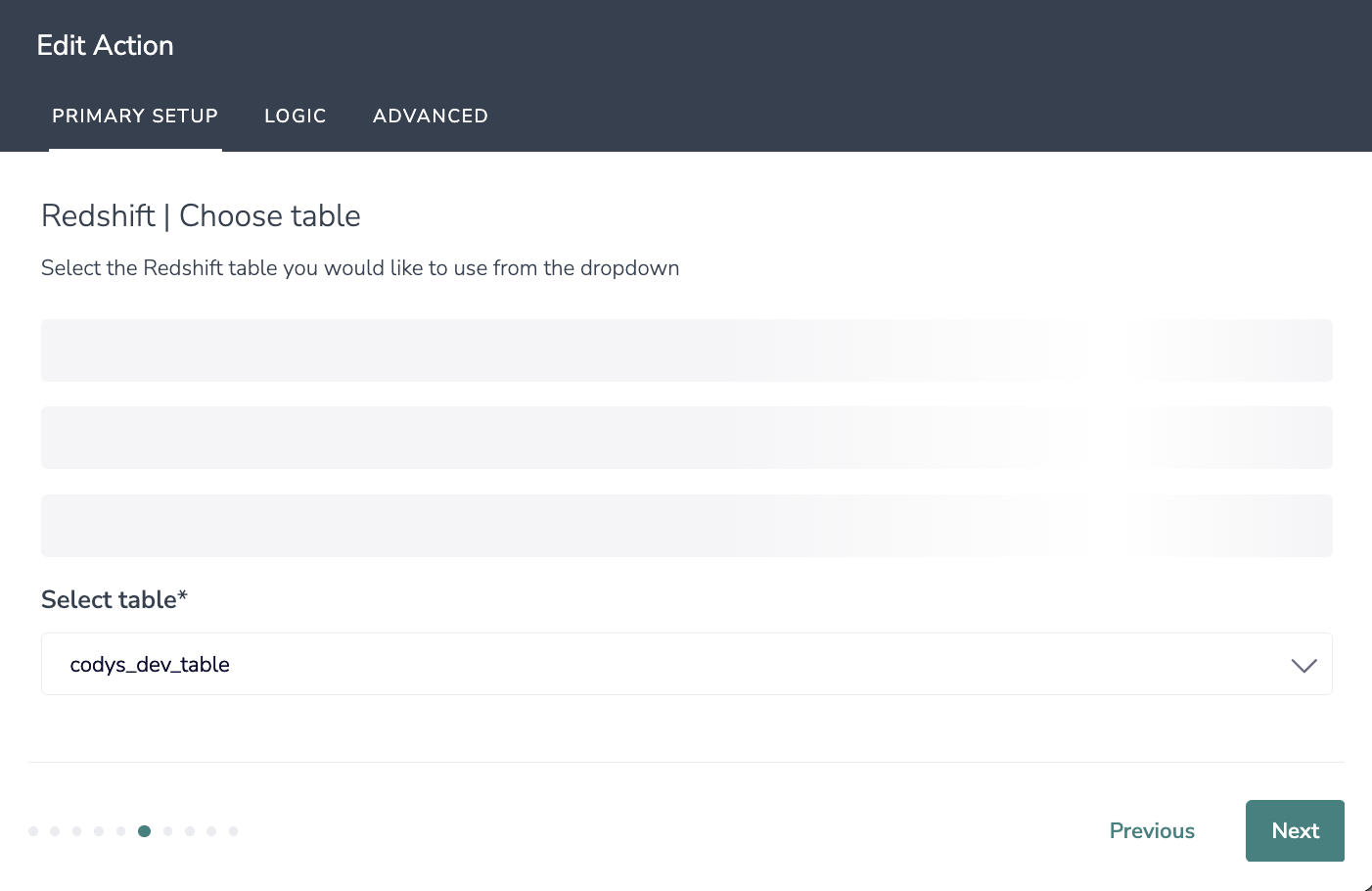
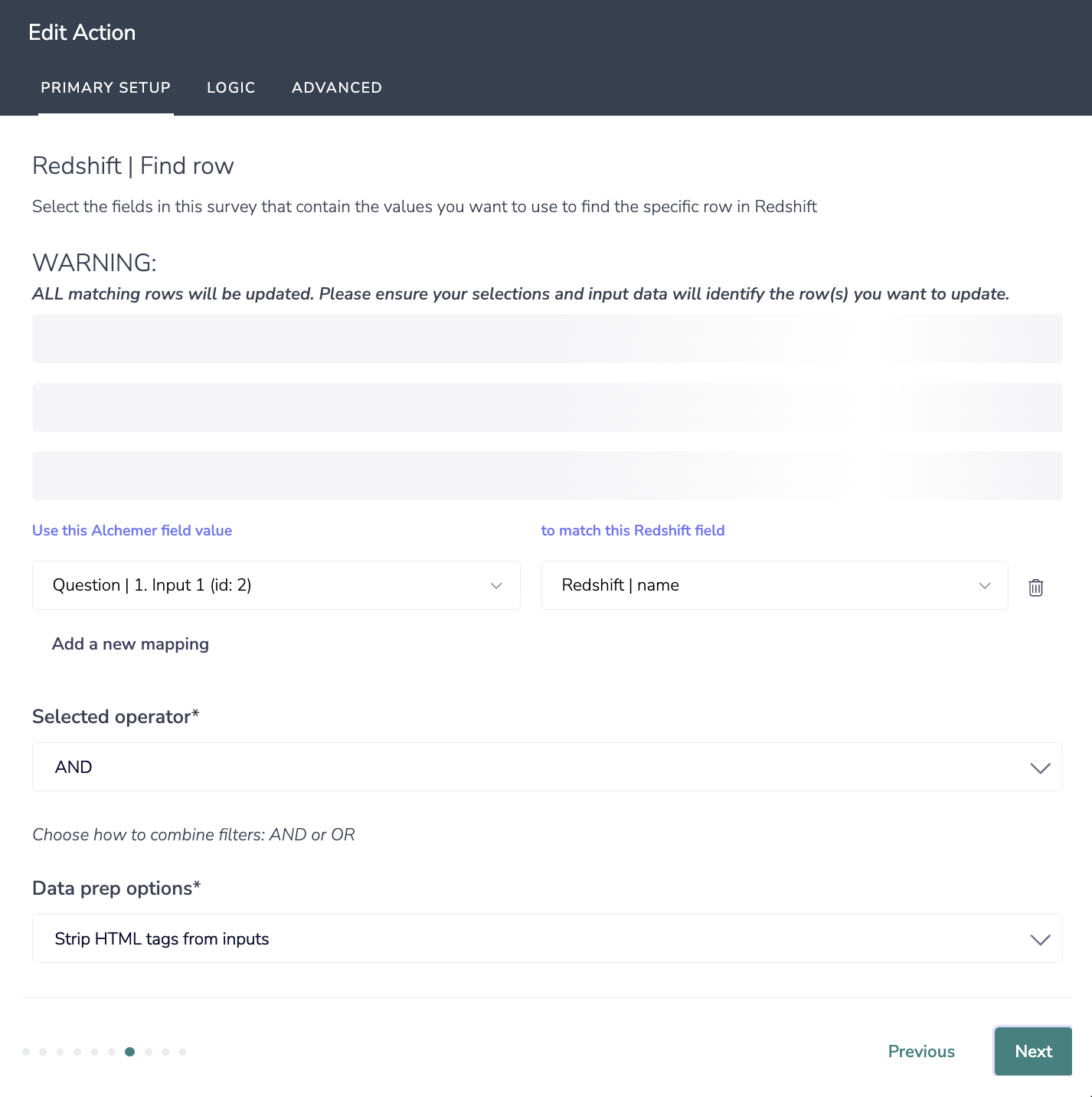
8. Select the fields in this survey that contain the values you want to use to find the specific row in Redshift.
All matching rows will be updated. Please ensure your selections and input data will identify the row(s) you want to update.
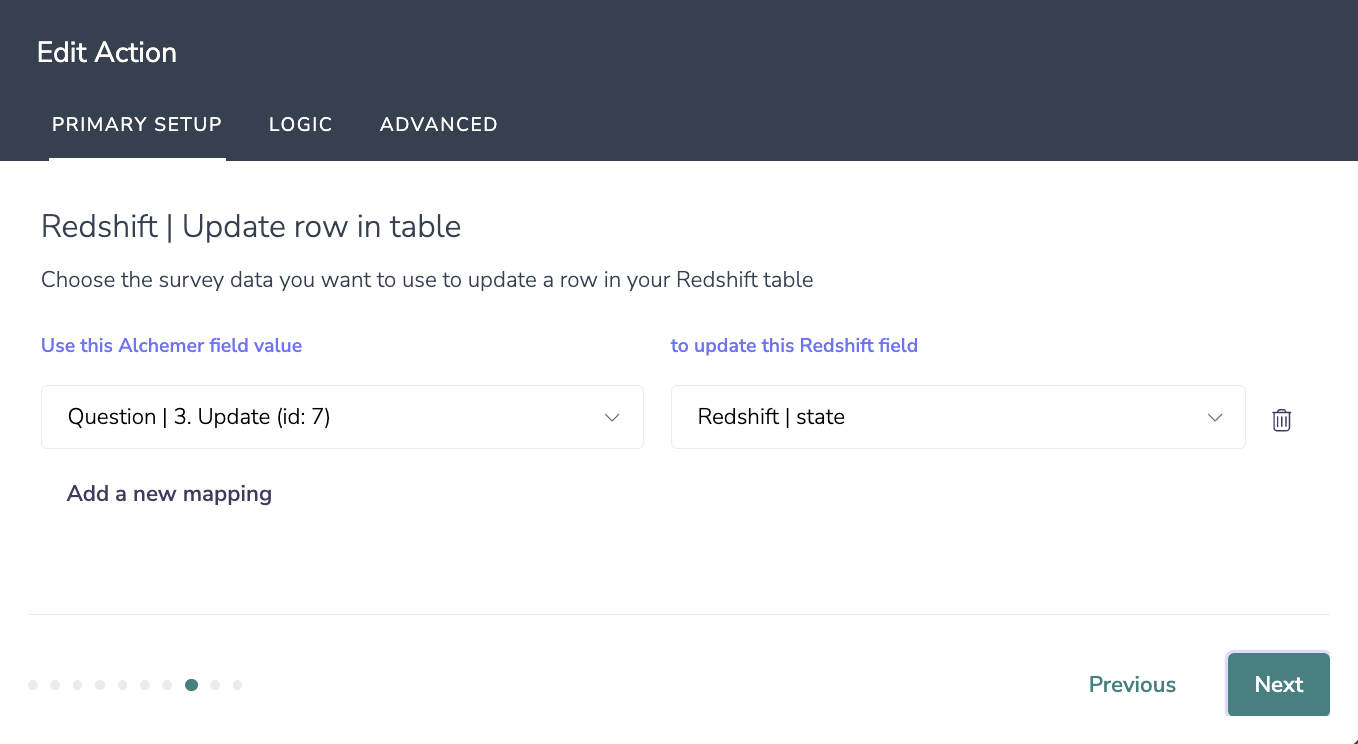
9. Choose the survey data you want to use to update a row in your Redshift table.
10. Select the fields that you would like to get back.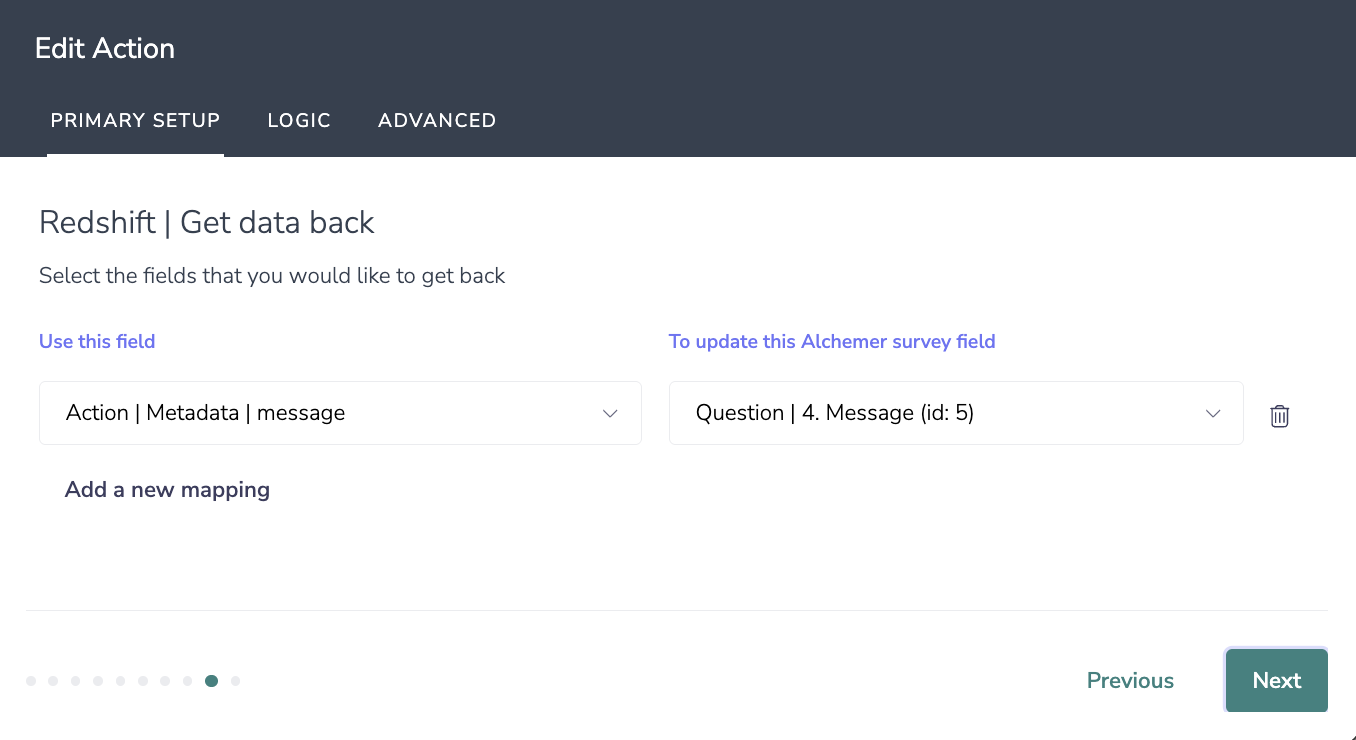
11. Click save when the setup is complete.
