This feature is available to enterprise customers. If you are interested, please contact us for more information!
If you are an enterprise customer, Webhooks are only accessible to Account Administrators.
Account Notification Webhooks allow you to receive notifications regarding activity in your account via an HTTP POST to an external URL.
Webhooks are typically used by developers to register endpoints that will be notified when activities of their choosing take place. This allows for a more seamless integration with Alchemer that limits the need for repetitive polling of the API.
If you are looking to use Webhooks to send data to and from surveys visit our Survey Webhooks documentation.
Available account notifications
- Survey-create notification
- Survey-update notification
- Survey-publish notification
- Survey-close notification
- Response-received notification
- Response-received notification post processing (includes response ID)
Setup
Your webhook endpoint must accept the connection request within 5 seconds and be able to receive the data within 30 seconds. If not complete after 30 seconds, the request will timeout and not be retried.
We recommend testing these notifications before you start sending data to your production endpoints.
- To set up an Account Notification Webhook go to Integrations > Webhooks.
- Enter your endpoint URL in the field below the notification/s you wish to receive.
- Click Save.
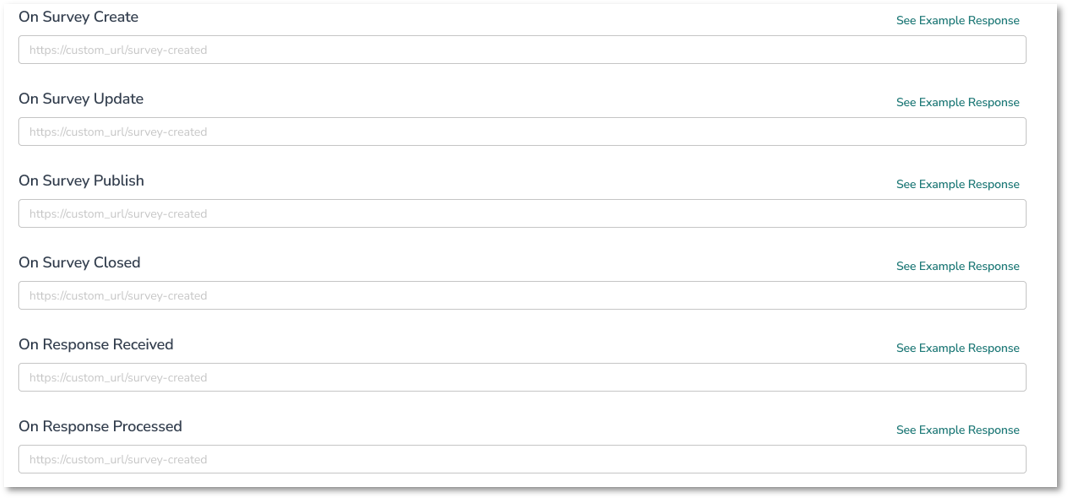
Note: When the “force secure links” setting is enabled at the account level, this setting will require webhooks to utilize HTTPS for security purposes
Note: Alchemer requires webhook endpoints to use HTTPS. If you enter an http:// URL, the system will reject the request as an “Invalid or dangerous URL supplied,” and no webhook will be sent. If your webhook isn’t arriving, this is often the reason.
Webhook Headers
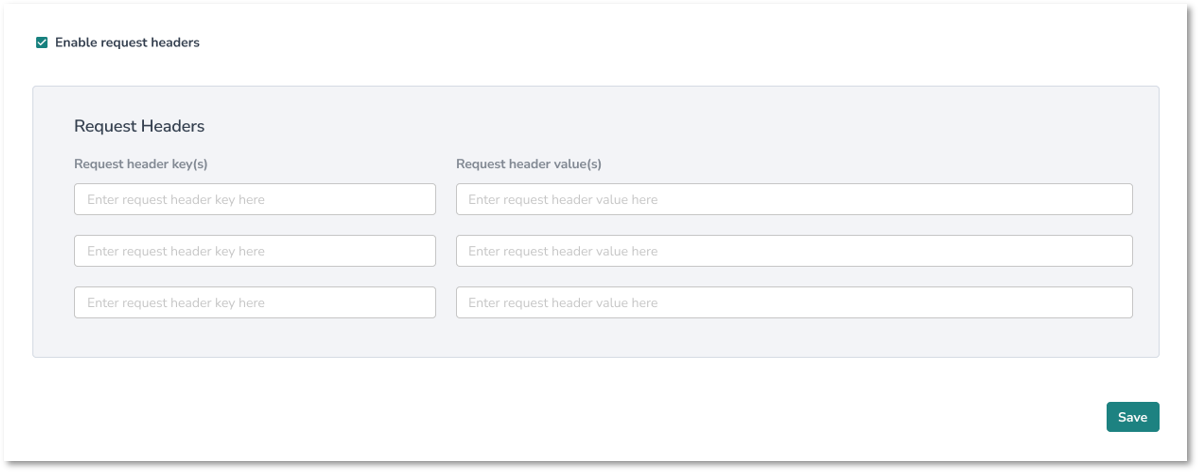
Custom headers can be added to the account webhooks for security or other purposes. You can set up to three headers in total. When configuring these headers, the following character limitations apply:
| Item | Length |
|---|---|
| Header Name | 256 characters |
| Header Value | 2048 characters |
To add a header
- Click the box next to Enable request headers
- Enter request header value(s) and key(s)
- Click save
Account Level Survey Notifications
Survey Create - The survey-create notification will post to the endpoint you specify when surveys are created. This includes newly created surveys, as well as, copied surveys created via the user interface or the API. See the below table for specifics about the data.
Survey Update - The survey-update notification will post to the endpoint you specify when surveys are updated. This includes the creation of or edits to questions, pages, actions, media elements, or translations made via the user interface or the API. See the below table for specifics about the data.
Survey Publish - The survey-publish notification will post to the endpoint you specify when share methods (link, email campaign, etc.) are created via the user interface or the API. The default survey share link is created when a user navigates to the share tab, which will fire the survey publish notification. See the below table for specifics about the data.
Survey Close - The survey-close notification will post to the endpoint you specify when a survey's status is changed to Closed. See the below table for specifics about the data.
| Trigger Fields | Description | Type | Available Webhooks |
|---|---|---|---|
| type | The trigger type: survey, page, question, translation, theme |
string | survey update |
| id | The ID of the element that was changed (survey ID, question ID, Page ID, etc.) | integer | survey update |
| User Fields | Description | Type | Available Webhooks |
| id | Alchemer User ID | integer | survey create, survey update, survey publish, survey close |
| name | The username | string | survey create, survey update, survey publish, survey close |
| The user's login email address | string | survey create, survey update survey publish, survey close | |
| Survey Fields | Description | Type | Available Webhooks |
| survey_id | Survey ID | integer | survey create, survey update, survey publish, survey close |
| survey_title | Survey title | string | survey create, survey update, survey publish, survey close |
| survey_status | The survey status: Launched or Closed |
string | survey create, survey update, survey publish, survey close |
| survey_folder | Array with survey folder id and name | array | survey create, survey update, survey publish, survey close |
| survey_theme | Array with theme ID and the theme name | array | survey create, survey update, survey publish, survey close |
| teams | Object with teams that have access to the survey | object | survey create, survey update, survey publish, survey close |
| Account Fields | Description | Type | Available Webhooks |
| id | Alchemer Account ID | integer | survey create, survey update, survey publish, survey close |
| name | Account name as specified in the Contact Info under Account > Summary > Account Overview | string | survey create, survey update, survey publish, survey close |
| parent_id | Master Account ID | integer | survey create, survey update, survey publish, survey close |
| Survey Link Fields | Description | Type | Available Webhooks |
| id | Link ID | integer | survey publish |
| type | Link type: link or email |
string | survey publish |
| name | Link name | string | survey publish |
| url | Link URL | string | survey publish |
Example Response for Survey Notifications:
{
  "webhook_name": "On Survey Update",
  "trigger_context": {
    "type": "survey",
    "id": 1234567
  },
  "data": {
    "user": {
      "id": 12345,
      "name": "John Smith",
      "email": "john.smith@email.com"
    },
    "survey_id": 1234567,
    "survey_title": "My New Survey",
    "survey_status": "Launched",
    "survey_folder": [],
    "survey_theme": {
      "id": "68551",
      "theme": "My Custom Theme"
    },
    "teams": {
      "252692": {
        "name": "Team 1",
        "id": 252692
      }
    },
    "account": {
      "id": 33333,
      "name": "Alchemer",
      "parent_id": null
    }
  }
}
Account Level Response Received Notification
There are two types of Account Level Response Received Notifications.
- On response received - This account level response notification returns the response in real time as its received by Alchemer.
- On response processed (includes response ID) - This account level response notification returns the response after it's been processed by Alchemer so that it includes the ID which can be used to make further API calls. It also fires again when a completed response is edited and its data changes, and it includes the
is_initial_completionandresponse_data_changedfields so you can tell these events apart.
The response received notification will post to the endpoint you specify when a completed or disqualified response is recorded via either normal survey taking or the API. See the below table for specifics about the data.
| Response Fields | Description | Type |
|---|---|---|
| is_test | Flag for test data | boolean |
| session_id | Unique response session ID | string |
| account_id | Account ID | integer |
| survey_id | Survey ID | integer |
| response_status | Response status: Complete or Disqualified |
string |
| url_variables | URL Variables passed as part of the response | array |
| response_id | Alchemer response ID. This is only returned with the post-processing webhook. | integer |
| is_initial_completion | true when this notification is for the response's first completion (the response status changes from Partial to Complete). false when it is for a later edit to a Complete response. This is only returned with the post-processing webhook. |
boolean |
| response_data_changed | true when the submission changed any response data, for example an edited text answer, a changed radio button selection, or a newly checked checkbox. false when no response data changed. Always true when the response is first completed. This is only returned with the post-processing webhook. |
boolean |
| Survey Link Fields | Description | Type |
| id | Link ID | integer |
| type | Link type: link or email |
string |
| name | Link name | string |
| url | URL | string |
| Contact Fields* | Description | Type |
| Contact email address | string | |
| First Name | Contact first name | string |
| Last Name | Contact last name | string |
| Organization | Contact organization | string |
| Team | Contact organization | string |
| Group | Contact group | string |
| Role | Contact role | string |
| Phone (Home) | Contact home phone | string |
| Phone (Fax) | Contact fax phone | string |
| Phone (Work) | Contact work phone | string |
| Address | Contact address | string |
| Suite/Apt | Contact suite/apt | string |
| City | Contact city | string |
| State/Region | Contact state/region | string |
| Country | Contact country | string |
| Postal Code | Contact postal code | string |
| Job Title | Contact job title | string |
| Website | Contact website | string |
| Region | Region | string |
| Invite Custom 1-10 | Invite Custom Fields 1-10 | string |
*Present only if share method is an Email Campaign.
When the On Response Processed Notification Fires
The On response processed notification fires in these cases:
- When a response is first submitted and its status changes from Partial to Complete. In this notification,
is_initial_completionistrueandresponse_data_changedistrue. - When a respondent returns to a Complete response through an edit link or Save and Continue link and submits a page that changes response data. In this notification,
is_initial_completionisfalseandresponse_data_changedistrue.
Navigating through a Complete response (clicking Next, Back, or Submit) without changing any answers does not fire the On response processed notification.
response_data_changed is true if data changed on any of the included pages.Example Response for Response Received Notification:
{
  "webhook_name": "On Response Received",
  "data": {
    "is_test": false,
    "session_id": "1591213853_5ed7ff1d3b37d9.13571736",
    "account_id": 33333,
    "survey_id": 1264838,
    "response_status": "Complete",
    "url_variables": {
      "sguid": "bG0PQDHDyDDhEGvl"
    },
    "survey_link": {
      "id": 8004308,
      "type": "link",
      "name": "Default Link",
      "url": "www.alchemer.com/s3/4835933/Survey"
    },
    "contact": {
      "Email": "test@email.com",
      "First Name": "John",
      "Last Name": "Smith",
      "Organization": "Alchemer",
      "Division": "",
      "Department": "",
      "Team": "Sales",
      "Group": "",
      "Role": "Account Manager",
      "Phone (Home)": "",
      "Phone (Fax)": "",
      "Phone (Work)": "",
      "Address": "123 Main St",
      "Suite/Apt": "333",
      "City": "Boulder",
      "State/Region": "CO",
      "Country": "United States",
      "Postal Code": "12345",
      "Job Title": "",
      "Website": "",
      "Region": "CO",
      "Invite Custom 1": "1234567",
      "Invite Custom 2": "",
      "Invite Custom 3": "",
      "Invite Custom 4": "",
      "Invite Custom 5": "",
      "Invite Custom 6": "",
      "Invite Custom 7": "",
      "Invite Custom 8": "",
      "Invite Custom 9": "",
      "Invite Custom 10": ""
    }
  }
}
Example Response for Response Processed Notification:
{
  "webhook_name": "On Response Processed",
  "data": {
    "is_test": false,
    "session_id": "1792700000_6ada6e8adc1234.12345678",
    "response_id": 2,
    "account_id": 123456,
    "survey_id": 1234567,
    "response_status": "Complete",
    "is_initial_completion": false,
    "response_data_changed": true,
    "url_variables": {
      "snc": "1792700000_6ada6e8adc1234.12345678",
      "_iseditlink": "true",
      "slanguage": "English"
    },
    "survey_link": {
      "id": 26482381,
      "type": "link",
      "name": "Default Link",
      "url": "www.surveygizmo.com/s3/1234567/Alchemer-Survey"
    },
    "contact": []
  }
}
Test Account Webhooks
There are a number of third-party tools available for testing your Webhook, including Webhook Tester and Mockbin. We have highlighted testing with Webhook Tester below.
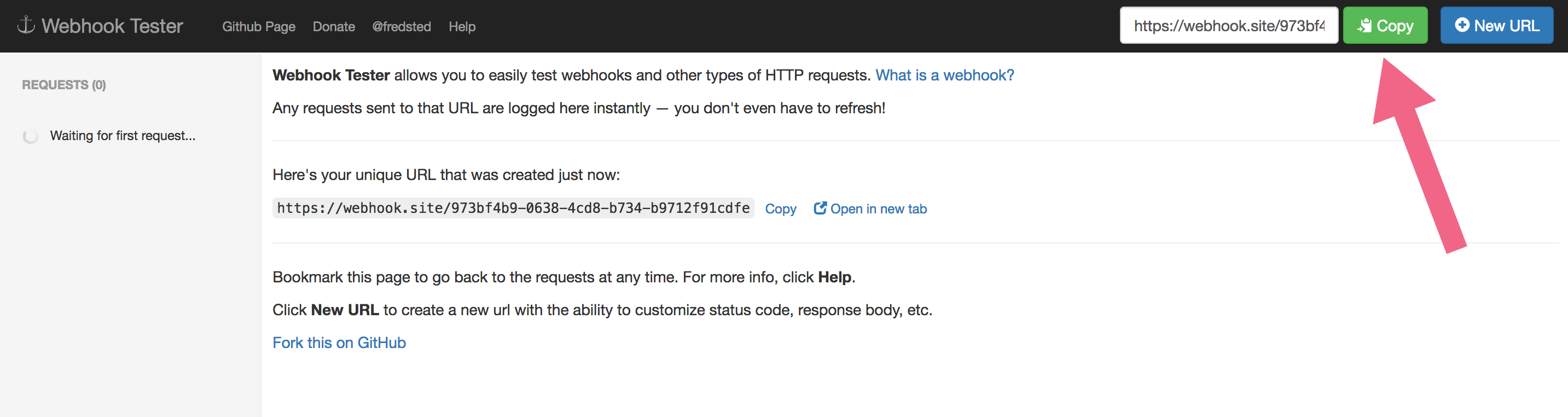
- Go to the following link: https://webhook.site/#/.
- A unique URL will be automatically generated for you when you enter the site. Click the copy button to the upper right to copy your unique testing URL to your clipboard. Note: Do not use the link in the image, it is a unique link that was created for our particular instance, it will not work for you.
- Go to your Account Webhooks via Account > Integrations > Webhooks.
- Paste your unique Webhook Tester URL into the Account Webhook that you want to test.
- Save your Webhooks and perform one of the associated tasks to trigger the Webhook. For example, to test the On Survey Create webhook, create a survey.
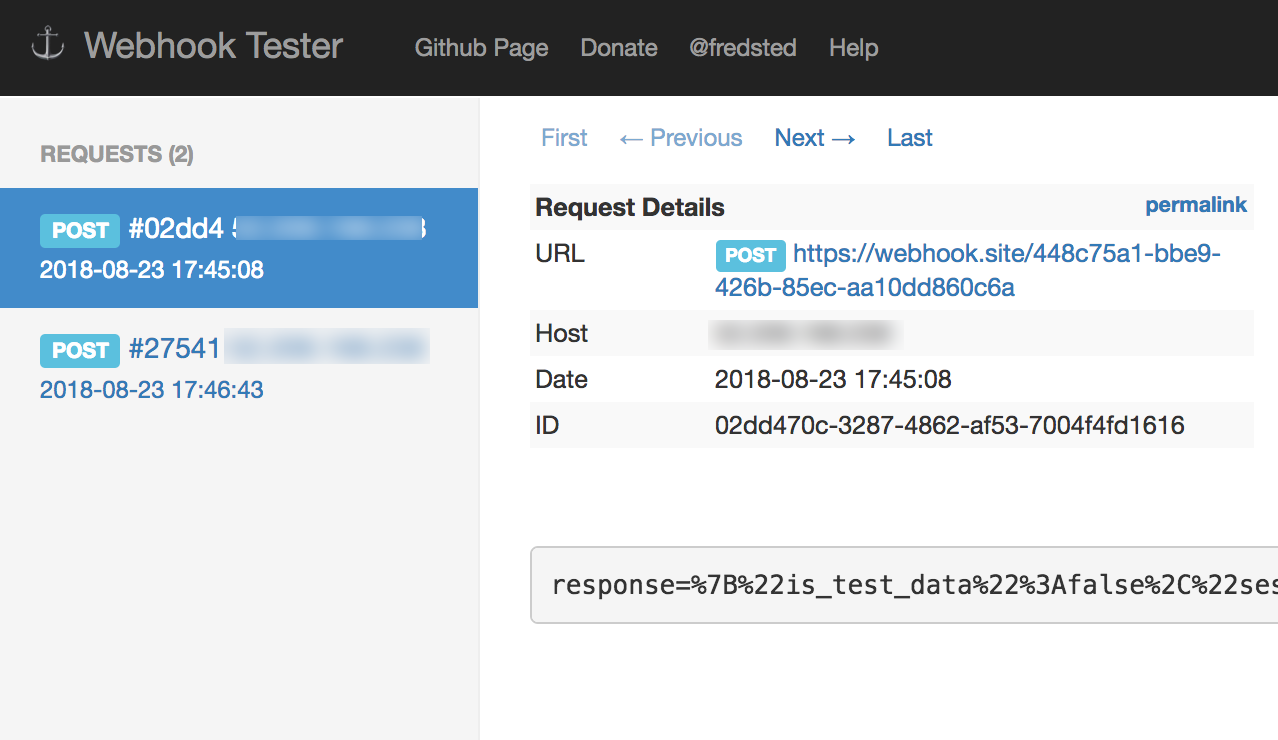
- To view the results that get posted, return to Webhook Tester. Each time a new response is submitted it will appear in your request list in the left menu. Click it to review the request details.
FAQ
How will Account Webhooks work in Master/Sub Accounts?
Account Webhooks are only available at an account level. So, Account Webhooks set up in a master account will only send notifications regarding activity in the master account. If you wish to receive notifications of activity in your sub accounts you can log in to your sub accounts and set up AccountWebhooks there to do so.
{survey_link}
