Alchemer uses five competitors for its measurements. If you already have five and want to add a new one, you’ll need to delete one of the existing competitors first.
To delete a competitor and add a new one, follow these steps:
- Login to your Alchemer account in LocationHQ.
- Go to Locations > Locations to display the Locations page.
- On the Locations page, hover over the location for which you want to manage competitors. The Refresh icon (circular arrows) and the View Competitor icon (binocular) icons appear. Select the View Competitor icon to display the Local Competitor Manager page.
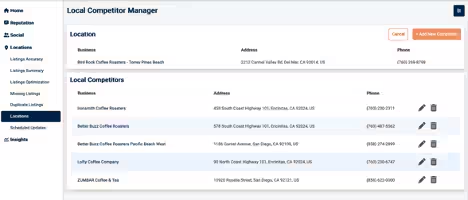
- On the Local Competitors pane, select the Remove Competitor icon (trash can) for the competitor you want to delete.
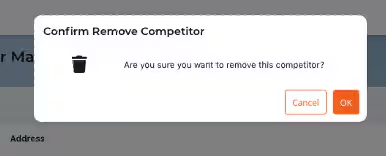
- Select OK to confirm you’d like to remove the competitor. Alchemer confirms the removal.

6. Now, to add a new competitor, select + Add New Competitor to display the Edit Competitor page.
7. Fill out the Edit Competitor page as completely as you can.
8. Select Add New Location to add the new competitor, which now appears on the Local Competitors pane on the Local Competitor Manager page.
