Managing and responding to customer reviews can improve search ranking, increase customer loyalty, and show potential customers that their opinions are valued.
Review responses require specific account permissions and can be made on platforms such as ApartmentGuide, Cars.com, Facebook, Google, Trustpilot, and Yelp through LocationHQ. Credentials must be entered into LocationHQ for Facebook, Google, Trustpilot, and Yelp.
Accessing customer reviews
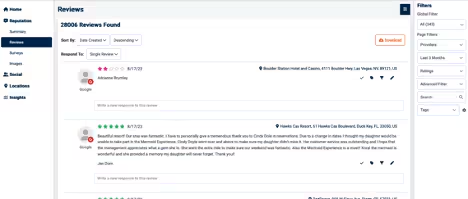
You'll find your customers' reviews about your business on the Reviews page.
- Login to your Alchemer account in LocationHQ.
- Go to Reputation > Reviews to display the Reviews page.
Filtering and sorting reviews
On the Reviews page, you can use the Global Filter, accessible from the three-layer icon in the upper right, to filter reviews to find specific types.
The Page Filters offer a convenient way to search for specific providers. Instead of scrolling, you can start typing into the Global Filter to bring up a specific account, group, or location.
The Page Filters offer a range of options. You can filter for a specific time duration or create a custom time range. The Ratings filter allows you to select by star rating or whether the business has been recommended, giving you more control over your search.

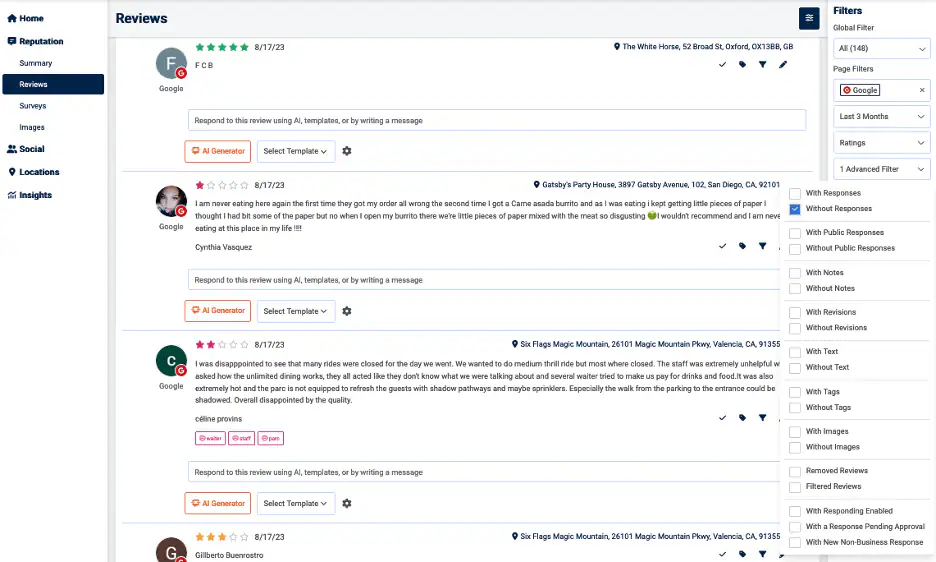
Advanced Filters
| Filter | Description |
|---|---|
| With Responses, Without Responses | Whether the review has been responded to |
| With Public Responses, Without Public Responses | Whether the review has been responded to and published for public viewing |
| With Notes, Without Notes | Whether anyone left a note |
| With Revisions, Without Revisions | Whether the review has been revised |
| With Text, Without Text | Whether there is any text in the review |
| With Image, Without Image | Whether an image is included |
| Removed Reviews, Filtered Reviews | Whether they've been removed or filtered |
| With Responding Enabled | Whether responses can be published directly from LocationHQ |
| With a Response Pending Approval | Whether response is pending |
| With New Non-Business Response | Whether a new non-business response has been added |

Use the search box to type a keyword or phrase to find relevant reviews. You can search by tags using the Tags filter if you've tagged reviews.
You can sort by Date Created, Date Updated, Provider, or Rating on the upper left of the Reviews page. You can also sort in ascending or descending order.

Responding to reviews
LocationHQ allows you to respond to reviews from ApartmentGuide, Cars.com, Facebook, Google, Trustpilot, and Yelp.
For Facebook, Google, Trustpilot, and Yelp, you must first enter your credentials into LocationHQ. If you don't know how, see the article on managing third-party credentials. You don't have to enter credentials for ApartmentGuide or Cars.com.
Would you like to streamline your workflow further? The Alchemer API connects the AI Generator directly with your systems. For setup and details, your Customer Success Manager or support@chatmeter.com are just an email away.
In LocationHQ
- Login to your Alchemer account in LocationHQ and go to Reputation > Reviews.
- Find the review you'd like to respond to and use filters to narrow down the reviews. In the example, we filtered for Google reviews left during the last three months, for which a response has yet to be received. For advanced filter settings, see Filtering and Sorting Reviews.
- Determine how you want to respond:
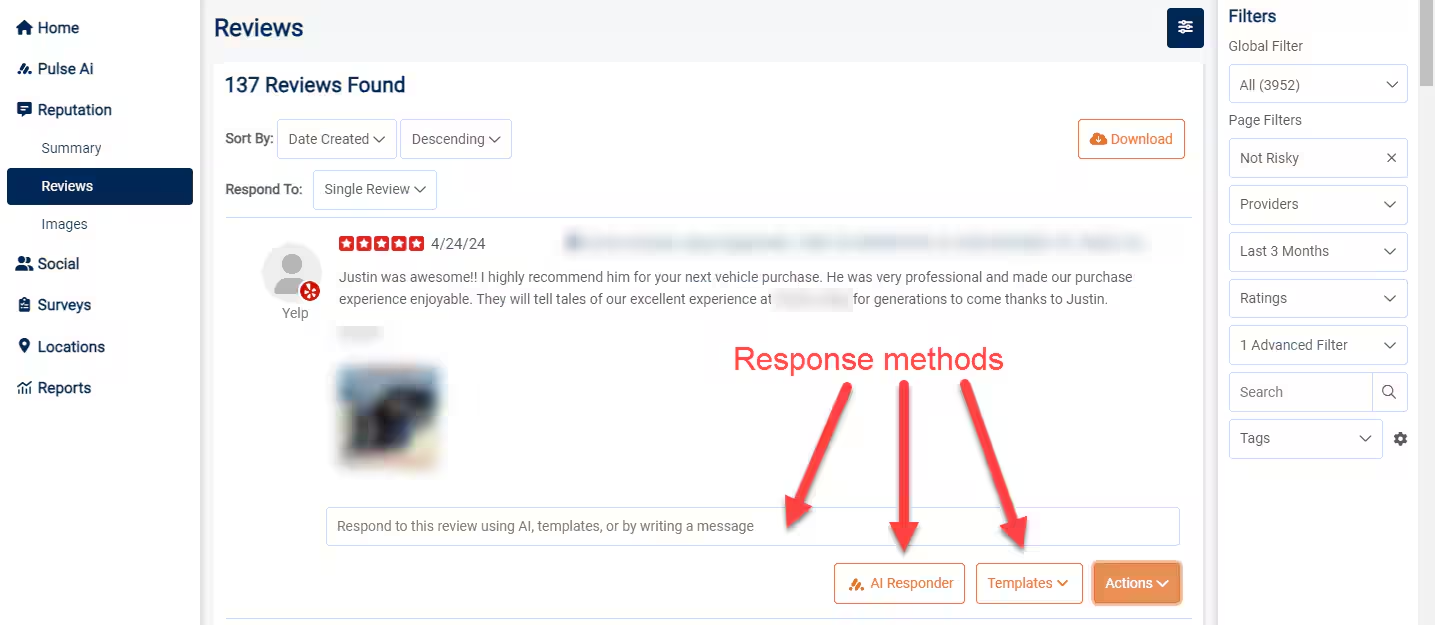
- Entering your response directly into the Write new response to this review field.
- Select the AI Generator to draft responses that resonate with your customer's sentiments, concerns, and compliments. Cycle through the responses until you find a match and tweak it to perfection. You can respond to only one review at a time.

If a response falls short, please report it directly through the Report option to help refine the AI's understanding and response quality. Our AI Generator is your best friend for crafting quick and tailored responses that precisely address each customer's feedback. You can respond to only one review at a time.
Leverage this innovative tool in LocationHQ to enhance your customer service:
- Effortless Responses: Tap into AI to draft responses that resonate with your customer's sentiments, concerns, and compliments. Whether it's a praise or a problem, the AI has a response ready.
- Endless Options: With a review selected in LocationHQ and the AI Generator activated, cycle through countless response suggestions until you find a match or apply a template for that personal touch.
- Text-based Reviews: Currently, the AI magic works exclusively with text-based reviews, ensuring your responses are always on point.
- Applying a template for that personal touch by selecting the cog icon to display a list of response templates.
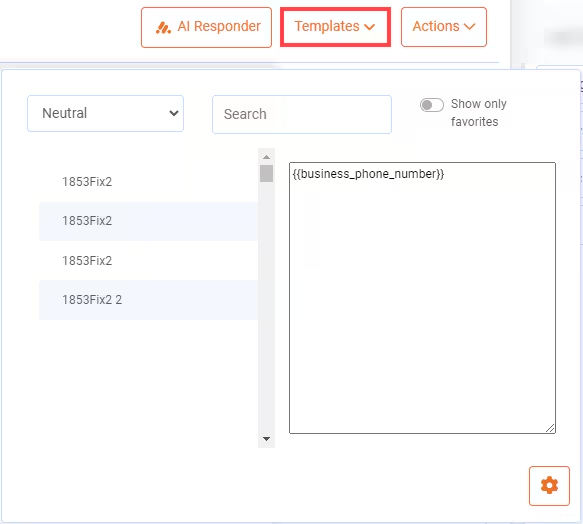
If you'd like to select a template as a favorite, which improves its searchability, hover over the template in the Review Responses Template dialog box and select the star for Favorite Template.
Can't find the template you want to use? Select Create Template at the top of the dialog window to create a new template. Enter the information required in the dialog box. All fields are required:
- Name—An easily recognized name for the template
- Review Sentiment Type—Whether the response is intended for a Positive, Neutral, or Negative review
- Template Body—Type the text you want to appear in the response, including the merge codes you'd like to use. Merge codes are identifiers for specific information to include in the template:
- Customer full name
- Customer first name
- Business name
- Business phone number
- When you've proofed and confirmed your response, select Publish.
Outside of LocationHQ
For listing providers other than ApartmentGuide, Cars.com, Facebook, Google, Trustpilot, and Yelp (or, if you still need to enter their credentials in LocationHQ), you must go to the listing provider and log in to respond to reviews.
- Login to your Alchemer account in LocationHQ.
- Go to Reputation > Reviews to find the reviews you'd like to respond to. In the example, we selected the filter to find all reviews from booking.com.
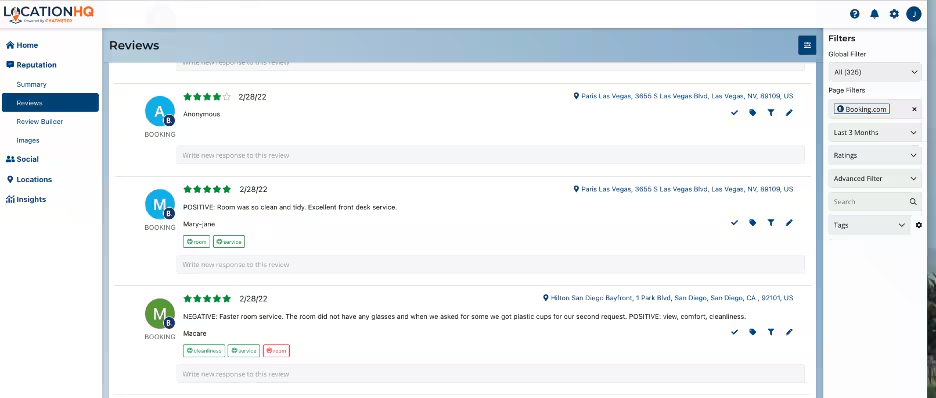
- Use the provider link in the circle to the left of the review to go to the provider's landing page for your location's review.
- Login using your business's login credentials for the listing provider.
- Respond to the post as your business. Your response will appear within 24 hours and appear beneath the original review.
With the mobile app
The Alchemer Mobile App is designed to make responding quickly to customer reviews easy.
For comprehensive information about using the Alchemer Mobile App, see Mobile App Help articles in the Alchemer Support Center, including:
- Review Cards and Details—View and sort reviews in the Mobile App.
- Responding to Reviews—Respond in the Mobile App using templates or without.
- Best and Worst Filters—Quickly find recent negative and positive reviews so that your response is as close to immediate as possible.
Next Steps
Create a report on the reviews. You can evaluate the data that your customers offer through their reviews of your business locations, including measuring the impact of responding to reviews on customers' star ratings and comparing a location to local competitors.
