Alchemer initiates the transfer of new or updated location information for your Google listings. This requires that you have set a Google Business Profile, verified your ownership, and that we have owner access to the group on your Google Business Profile. Unless we need to merge duplicates, providing Alchemer with Manager access on the Google profile is also acceptable.
Verifying your Google Business Profile and locations
To add or update location information on Google, you must verify the Google Business Profile for the business and locations. You can verify locations from your Google Business Profile. Alchemer users can also verify single-location Google listings from LocationHQ.
How to verify a listing from your Google Business Profile
To verify from your Google Business Profile, follow the directions in Google Business Profile help. There are a variety of methods to verify, including phone or text, email, video recording, live video call, or postcard. The basic steps are summarized in this section.
Verifying for the first time
- Add or claim your profile on Google. Learn how from Google Business Profile help: How to add or claim your Business Profile on Google.
- You can verify through phone or text, email, video recording, live video call, or postcard, depending on your business category, region, support hours, and other factors. It takes a day or two for a scheduled phone call and five to ten days for a postcard verification. Video and multiple verifications can take more time. Review the options and pick a verification method type. Learn how from Google Business Profile help: Google Business Profile help.
- Google reviews verifications, which may take up to seven business days. You’ll get a notification. If they aren’t able to verify your business using the method you chose, the Get Verified button shows up again. If this happens, try another verification method.
- After you verify, Google says it can take a few weeks for updated information to show across the platform. You can update and add information at any time. Learn how from Google Business Profile help: Edit your Business Profile on Google.
Re-verifying your profile
Google sometimes asks you to re-verify or to update or supplement business information. If this happens, follow the steps in Verifying for the first time.
Verifying in bulk
You or Alchemer can request bulk verification of chain businesses with more than 10 locations operating under the same business name. You’ll need a branded email address to verify your association with the business. Learn how from Google Business Profile help: Request bulk verification for 10+ profiles.
How to verify a listing from LocationHQ
To drill down to the listing you want to verify, in the Listings Optimization report, follow these steps:
- Login to your Alchemer account in LocationHQ.
- Go to Locations > Listings Optimizations to display the Listing Optimizations Report.
- Use the filter to navigate to the listing you’d like to verify.
- Select Verify Listing.
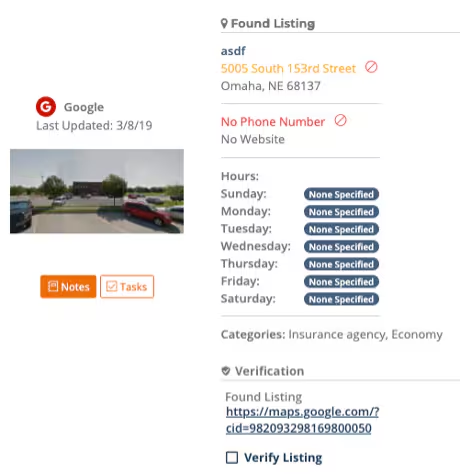
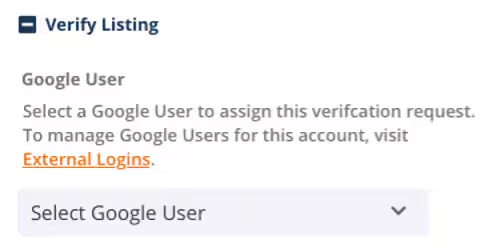
- In the Verify Listing dialog box, select a user to assign to the verification request. If necessary, you can manage the Google users in Alchemer by selecting External Logins.
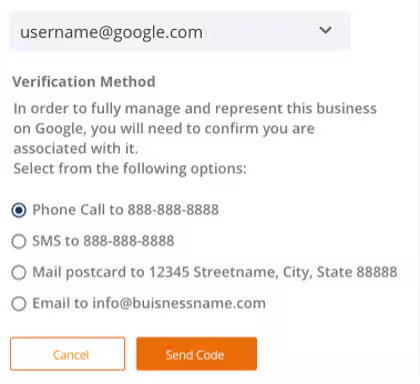
- Select a verification method to use to receive your verification PIN/code. Depending on your account, potential verification options include a phone call, SMS text, email, or a postcard sent to you through the mail.
The Alchemer listings team has found the most common method to be through the mail. If you select a phone call, make sure that the phone line does not have an automated answering system. If it does, the call won’t go through. If you select SMS text, make sure that the phone line can receive SMS text messages.
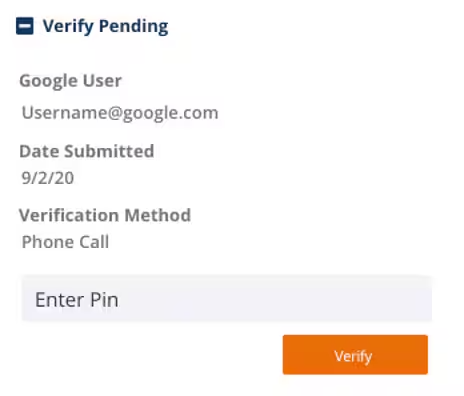
- Once you've received your PIN from Google, enter it into LocationHQ.
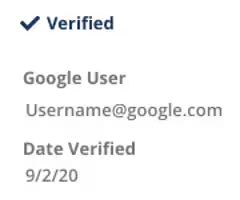
- After you’ve entered the PIN, you’ll see a checkmark to indicate that the listing has been verified.
Finding whether Alchemer has access to your Google Business Profile
To find out what access Alchemer has already on the Google Business Profile, in your Google Business Profile, select Group Settings, then Manage Users to see all users and access level shared with each.
Sharing your Google Business Profile access with Alchemer
To share Owner or Manager access to your Google Business Profile with Alchemer, follow the steps in the Google Business Profile Help page How to add & remove owners & managers for your Business Profile. You’ll need to have the Alchemer agency identification number to do this. If you don’t have it already, contact your Customer Success Manager or email support@chatmeter.com for this identification number.
Changing ownership of or access to a Google Business Profile
If your Google Business Profile is owned by someone not affiliated with your business anymore, you might need to request access or have it transferred.
To transfer ownership of a business profile, follow the steps in the Google Business Profile Help page Transfer primary ownership of a Business Profile. Google also has a video explaining the process: https://www.youtube.com/watch?v=lChAZYRW14M.
If a former employee hasn’t relinquished control over a location, you can request access. Follow the instructions in the Google Business Profile Help page Request ownership of a Business Profile. If the request is rejected, you can appeal the decision.
Fields Alchemer can’t access
Some additional actions on Google listings–such as updating products, services, or nesting locations in another location–can’t be done for you by Alchemer because the fields aren’t available through API submissions or Google doesn’t offer it.
Contact your Customer Success Manager or email support@chatmeter.com if you have questions.
