Enabling and configuring multi-factor authentication (MFA)
Multi-Factor Authentication (MFA) provides an added layer of security for your Alchemer users. Once MFA is enabled by the account admin, users will need to verify their identity using a second authentication method—either an authenticator app or SMS—during login.
Step 1: Enable MFA requirement
When account admins enable MFA, users will be prompted to configure a second authentication method the next time they log in. Account admins can enable MFA by navigating to the Security dropdown and the MFA tab. Admins can then check the box to enable MFA.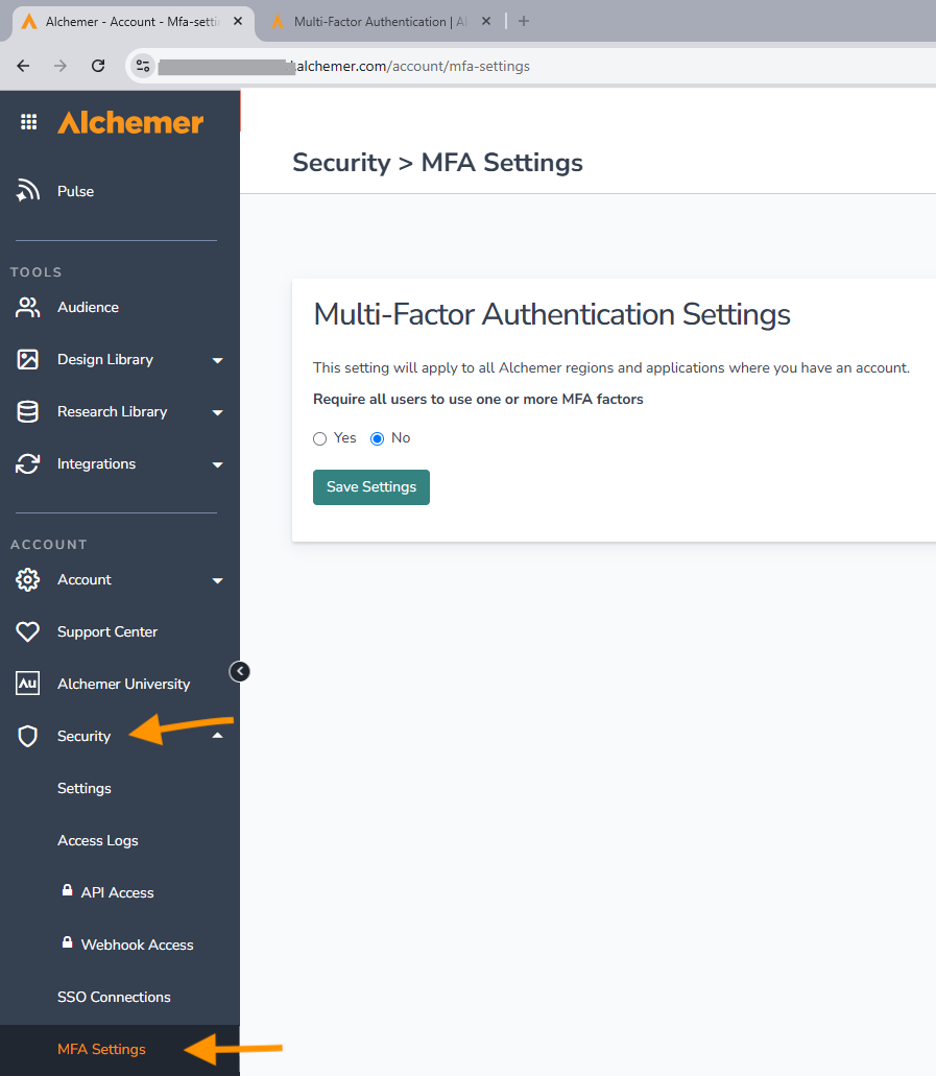
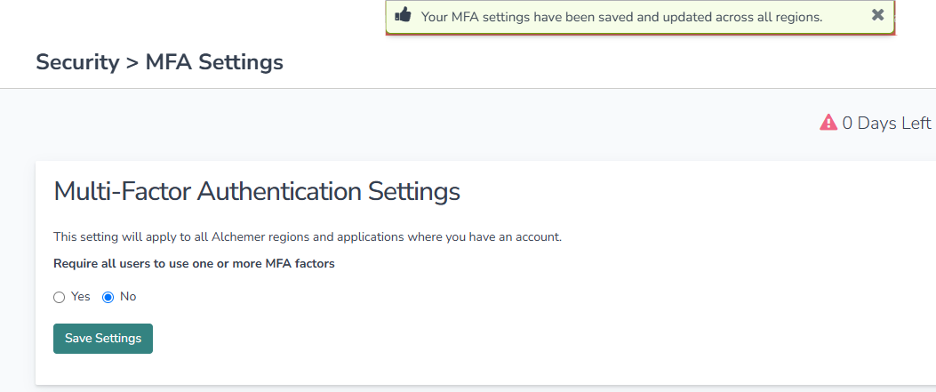
Note: If your administrator enables MFA as required, setup is mandatory upon your next login.
Step 2: Select an authentication method
After logging in, you’ll be prompted to choose a verification method. Available options include:
- Authenticator app (e.g., Google Authenticator, Authy)
- SMS verification using your mobile phone
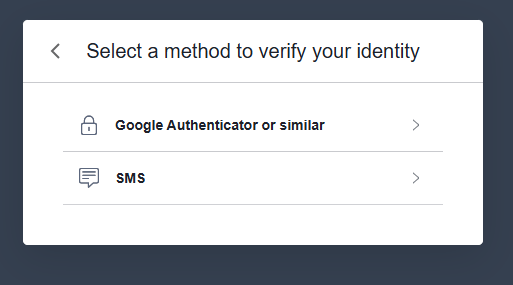
Using an authenticator app
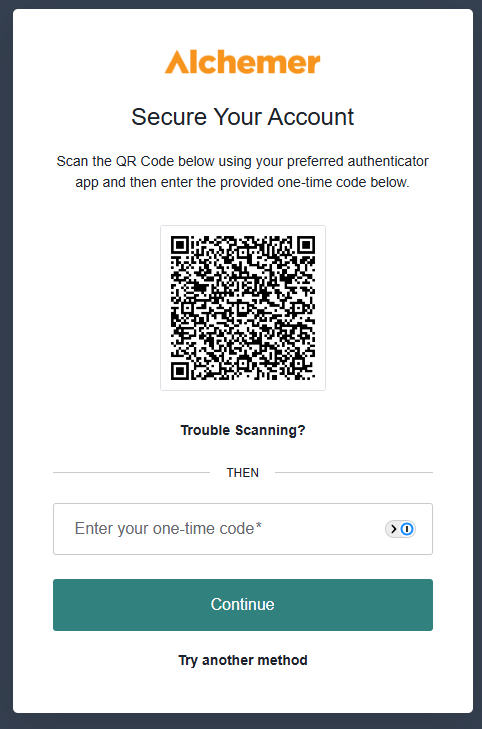
Select the authenticator app option to scan a QR code and complete setup.
Using SMS verification
1. Enter your 10-digit mobile number (U.S. only).
2. Alchemer will send a 6-digit verification code to the number you provided.
3. Enter the code to complete setup.
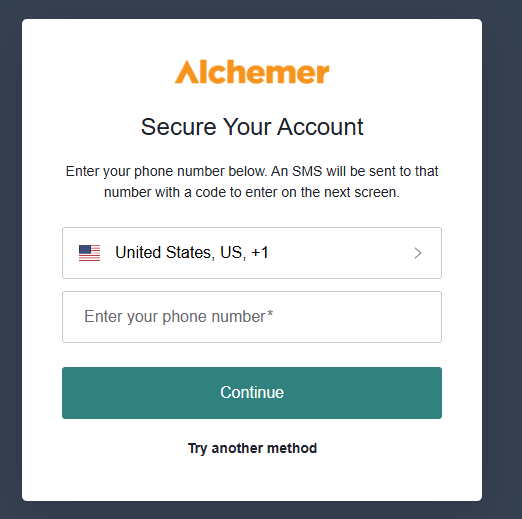
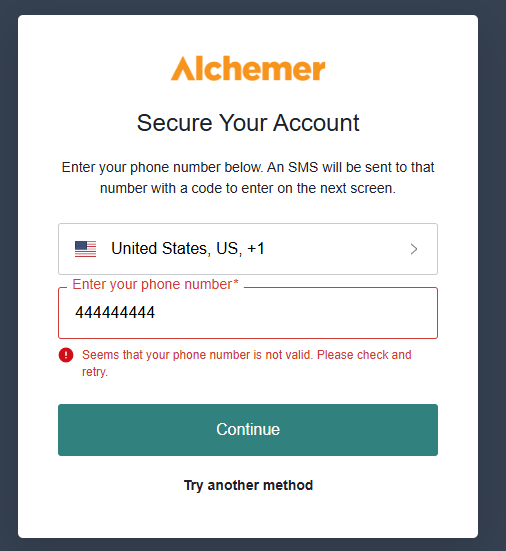
⚠️ If the phone number is invalid, you’ll see an error message and won’t be able to proceed.
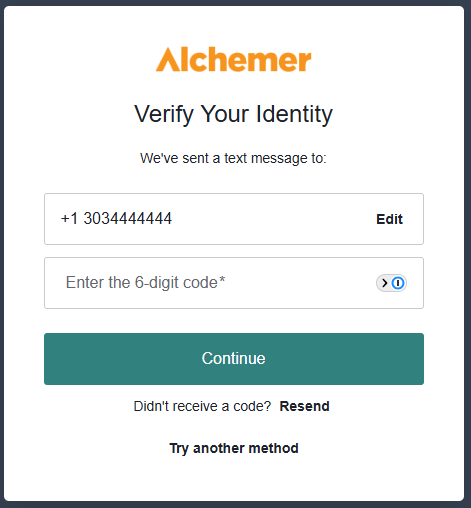
Heads-up: There is no success message after entering the code. Clicking Continue will log you into your account.
📵 You may receive a maximum of five (5) SMS codes per hour to the same number.
Resetting your MFA factor
If you need to reset your MFA method, you can manage it from your account settings. Options include resetting either the SMS or authenticator app factor.
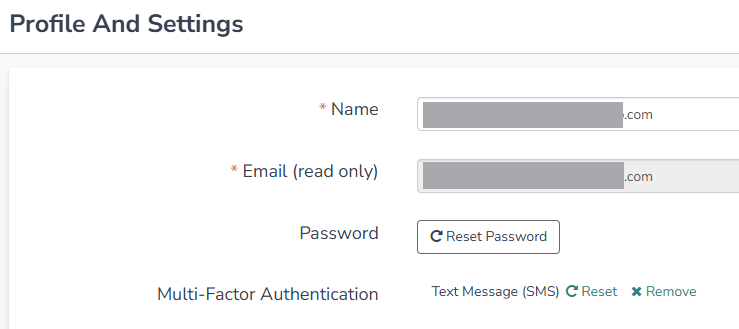
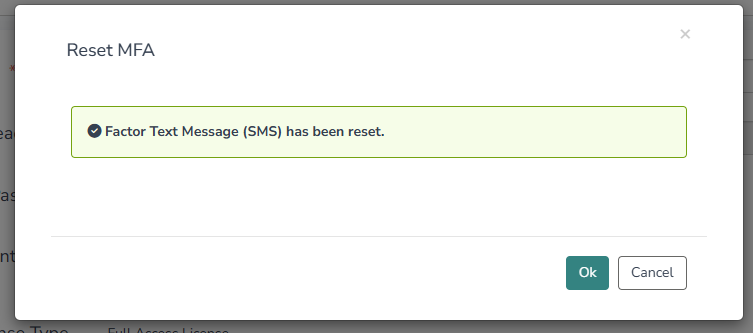
After a successful reset, you’ll see a confirmation message and will be prompted to set up MFA again at your next login.
