Treemap charts use color and rectangle size to represent two measure values. Each rectangle, or branch, is a value of the attribute. Some branches can contain smaller rectangles, or sub-branches. This setup makes it possible to display a large number of items in an efficient way.

You can rearrange the columns of your search into category, color, and size under the Layout tile in the chart builder menu.

Your search needs at least one attribute and two measures to be represented as a treemap chart.
Change Treemap Color
By default, the treemap color is blue in various shades. You can change the treemap color under chart configuration. To change the basic color the treemap uses, follow these steps:
1. Navigate to any treemap chart that you have edit privileges for.
2. Select the Column tile on the left side of your screen.
3. Select the chip for the measure under Slice with color.
4. Open the Color dropdown menu, and select one of the options in the color palette.
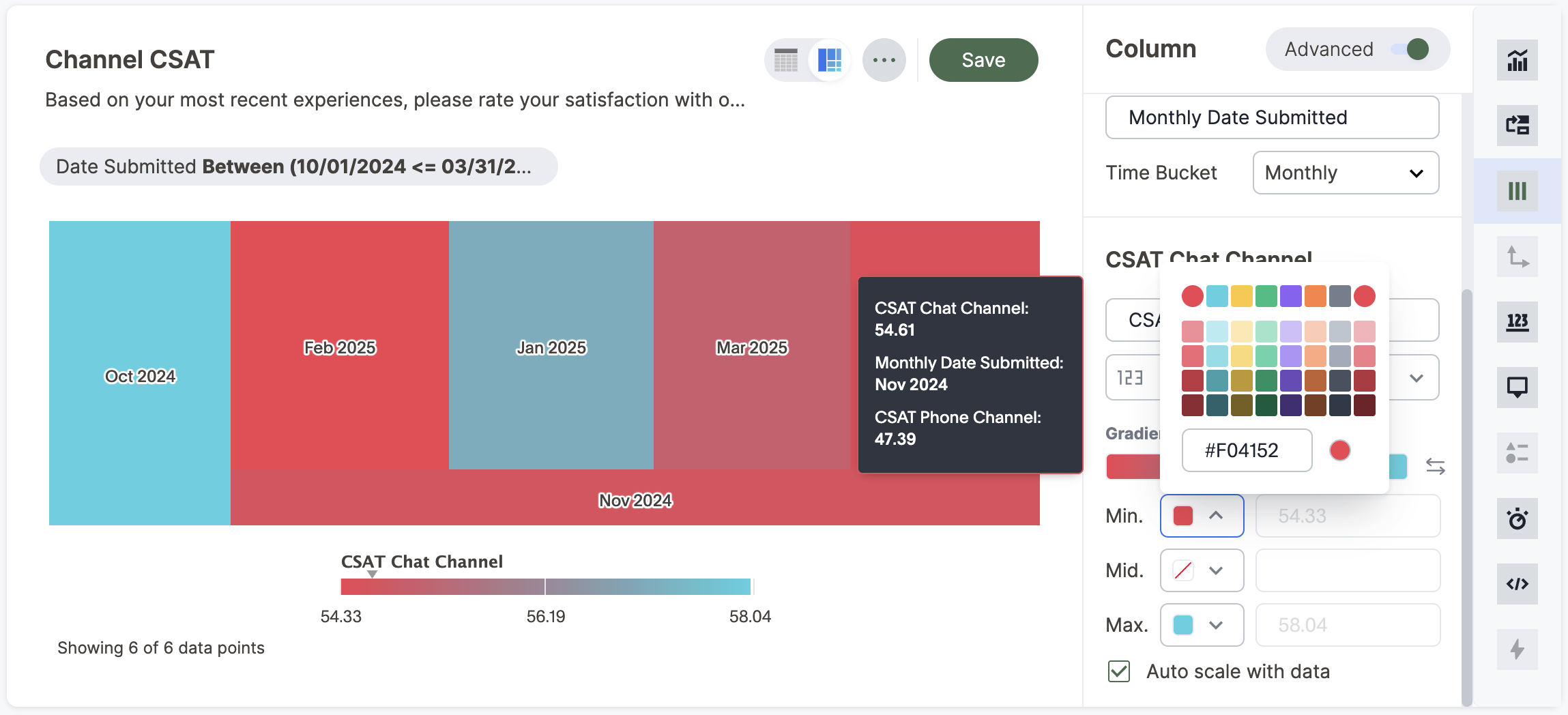
Change Chart Gradient
You can now choose multiple colors to define a gradient in charts that support gradients — geo heatmap, geo area, heatmap, and treemap charts. You can control the low, mid, and high values, and numerical value points to customize the gradient.
To define the gradient in a geo heatmap, geo area, heatmap, or treemap chart, follow these steps:
1. Open your chart, select the Column tile in the chart builder menu.
2. Scroll to the Gradient section to define the colors for the Min, Mid, and Max values using the color selector dropdowns.

1. In the text boxes you can define the min, mid, and max points numerically. You can define the min point, max point and mid as a narrow range if you would rather only see gradients for the top values of your measure.
2. (Optional) Select Flip Color to switch the high and low value colors.
Limitations
Treemap charts do NOT support conditional formatting.
