Alchemer can manage your listings on Apple Maps through the Apple API using the Apple Business Connect portal. As an Apple partner, the listing additions and updates that Alchemer sends for your business through Apple Business Connect are addressed as a priority and loaded rapidly to Apple Maps. You can add them one by one, or many at once (bulk edit).
For us to use Apple Business Connect to manage your listings, you’ll need to:
- Set up an Apple Business Connect account
- Delegate Alchemer as a partner in your Apple Business Account
- Provide your company's Apple ID to Alchemer
Set up an Apple Business Connect account
To set up an Apple Business Connect account, follow the instructions in the Apple help article that follows for this two-step process. First, you set up the account for your business, then you request Apple verification of the businesses associated with the account. It takes up to five days for Apple to verify your account.
The Apple help article Create your account in Apple Business Connect describes the account creation and delegation process.
To get started in creating your account, go to https://businessconnect.apple.com/. You’ll add your businesses and supply the required verification documentation to Apple.
Note: If your company operates outside of the US, you must create a separate brand on Apple Business Connect for each country you operate in. Additionally, make sure to select whether the brand you are adding is company owned or a franchise.
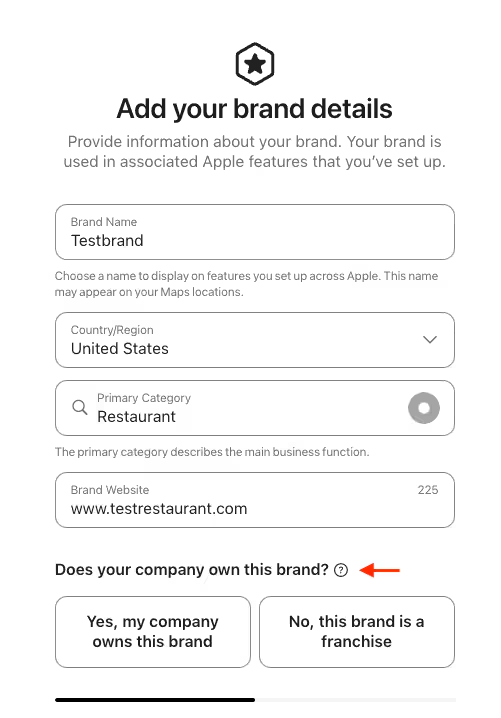
Once you have created an account and the verification has been completed, you’re ready to delegate to Alchemer as a partner to manage your account.
Delegate Alchemer as a partner in your Apple Business Account
By delegating Alchemer to manage listings in your Apple Business Account, you ensure that listing details for your locations are prioritized for rapid updates. This delegation also gives you the ability to manage Apple Maps cover and gallery images through LocationHQ.
Before you start, you’ll need the Alchemer Company ID. This is: 1499670412837036544.
To delegate Alchemer to manage listings, follow these steps:
- Login to your Apple Business Connect account.
- Select the Access tab.
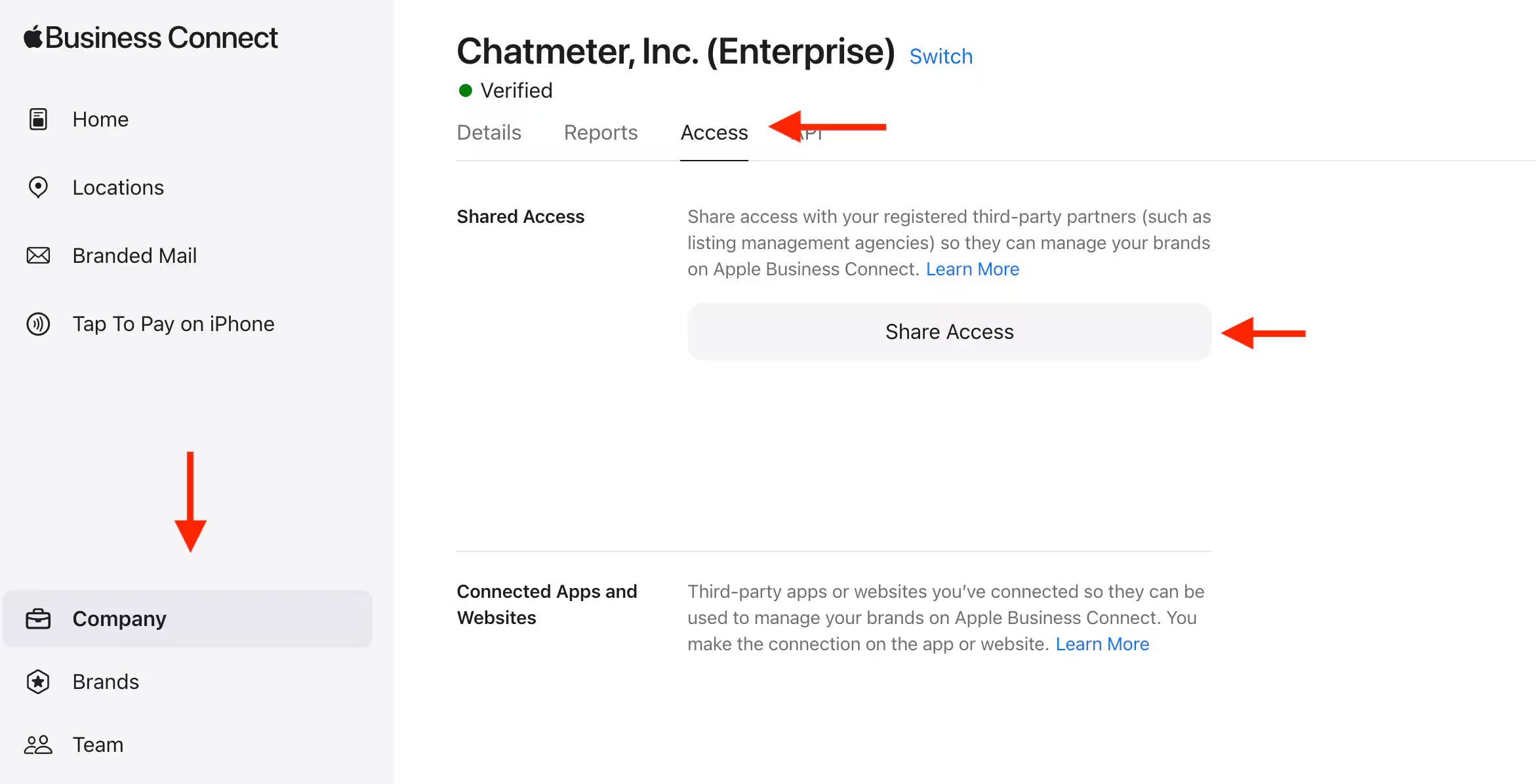
- Select Share access to display the Share access to your company dialog box.
- Enter the Alchemer Company ID, which is: 1499670412837036544.
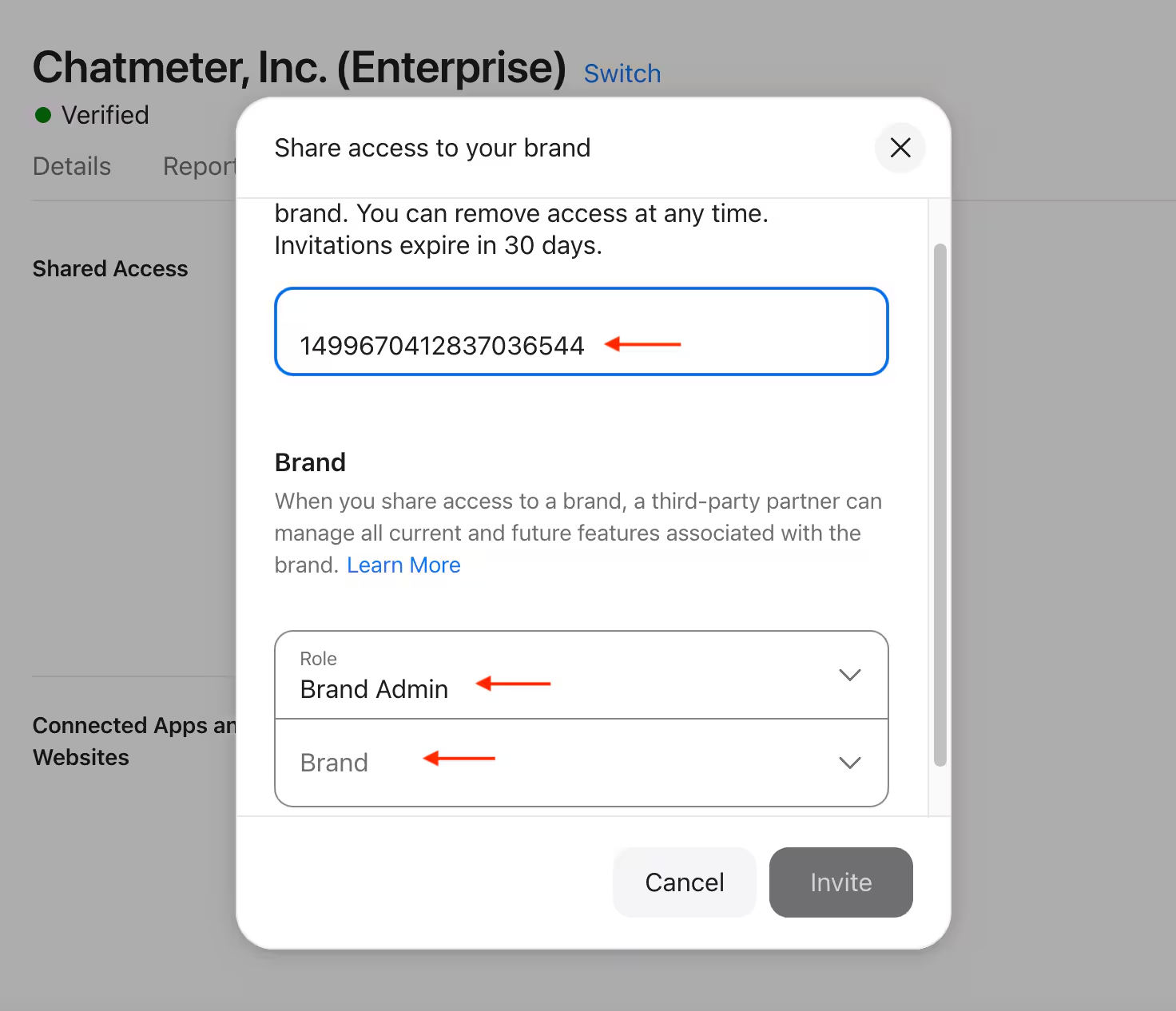
- Set up Brand Shared Access for Alchemer. The Role should be Brand Admin. If you give Alchemer a Brand Read-Only role, Apple will restrict the service Alchemer can give you.
- Select All Brands or a specific brand you want Alchemer to manage. Note that if you create a business after the original delegation, you will have to re-delegate the business to Alchemer in Apple Business Connect.
- Select Invite to save and send Alchemer the list of delegated businesses. After Alchemer accepts the invitation, Alchemer is the officially delegated partner in Apple Business Connect.
Provide your company’s Apple company ID to Alchemer
For each business entity you want Alchemer manage, you need to supply your company’s Apple Company ID to LocationHQ as a third-party credential.
To get your company’s Apple Company ID, login to your Apple Business Connect account and click on the company name. You’ll see your Apple Company ID in the Company ID field.
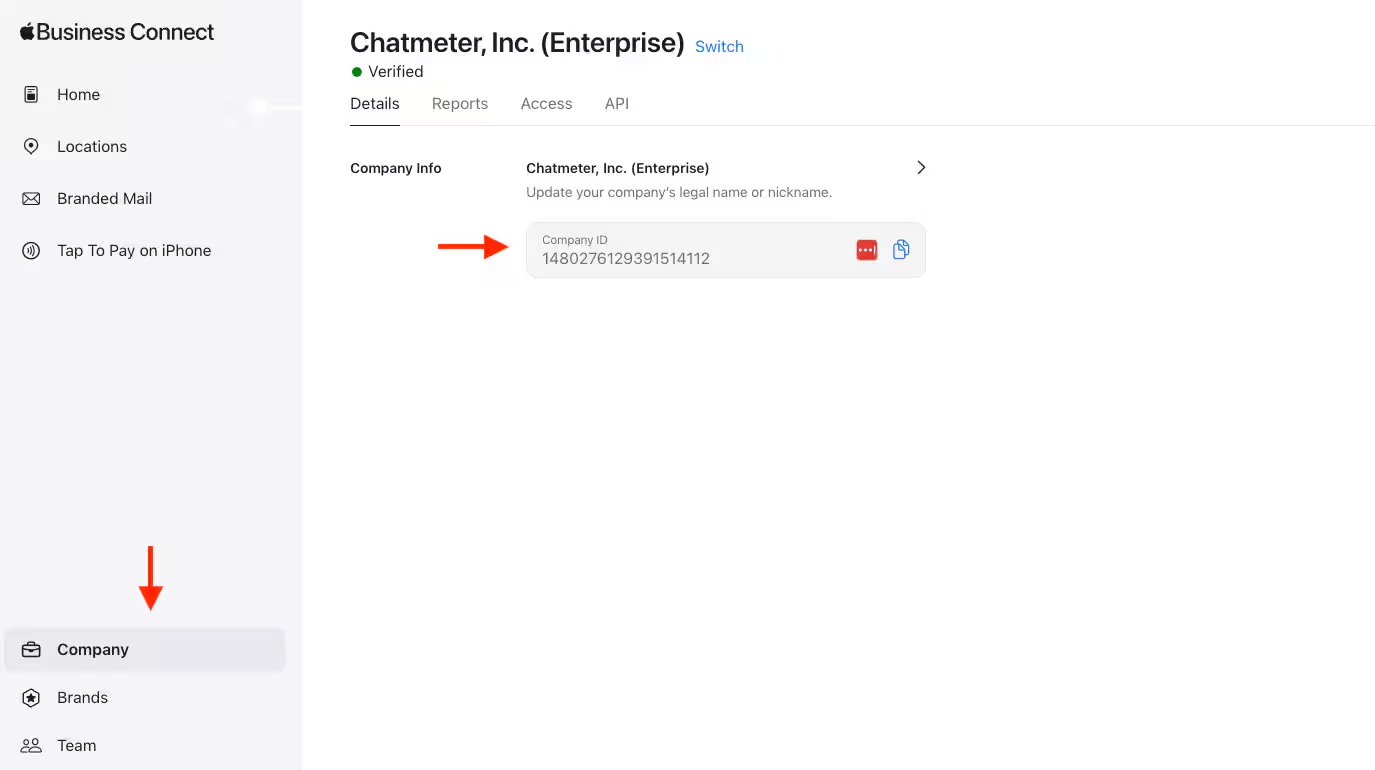
To add your company’s Apple Company ID, follow these steps:
- Login to your Alchemer account in LocationHQ.
- Select the Settings (cog) icon> Third-Party Credentials to display the Third-Party Credentials page.
- Select Add Credential and choose Apple from the menu.
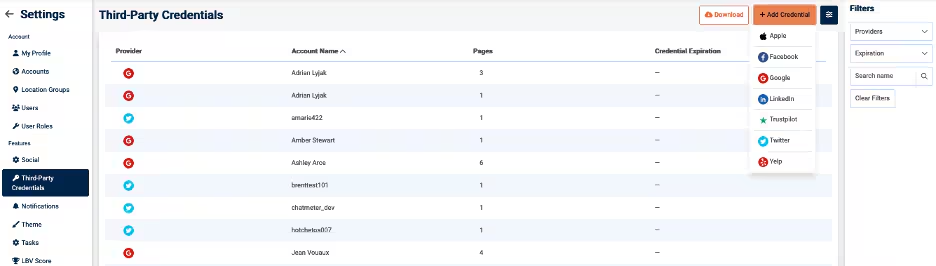
4. Enter your Apple Company ID on the Add Apple Business Connect Account dialog box.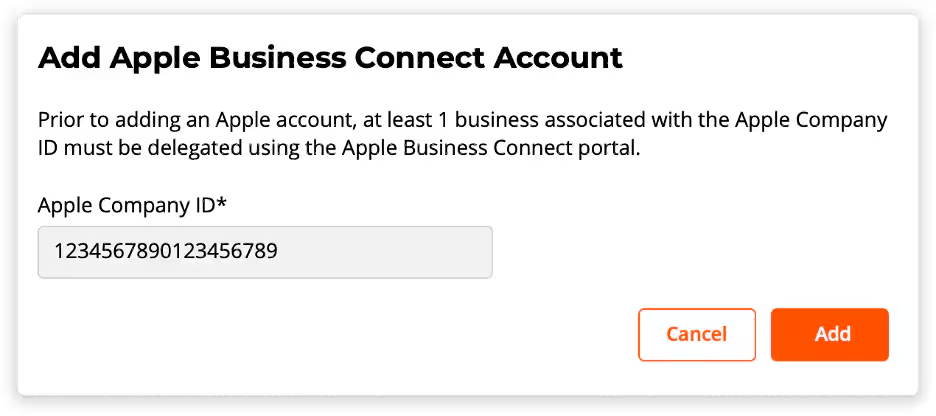
5. Select Add.
Add Alchemer locations to your Apple Business Connect account
Once you’ve delegated Alchemer as a partner and provided your company’s Apple ID to Alchemer, you can add Alchemer locations to your Apple Business Connect account.
To add Alchemer locations to your Apple Business Connect account, follow these steps:
- Login to your Alchemer account in LocationHQ.
- Select Location > Locations to display the Locations page.
- On the Locations page, select the location you want to add to your Apple Business Connect account. You can select more than one location if you want to add several at once to an Apple Business Connect account (bulk edit).
- On the Location Details page, select the Apple tab.
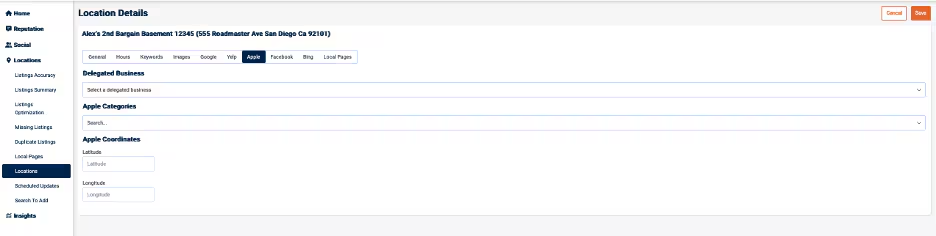
- In Delegated Business, select the Apple business name you want to associate with the Alchemer location. Note that you can make this selection only once. After you’ve selected a business, the field is locked.
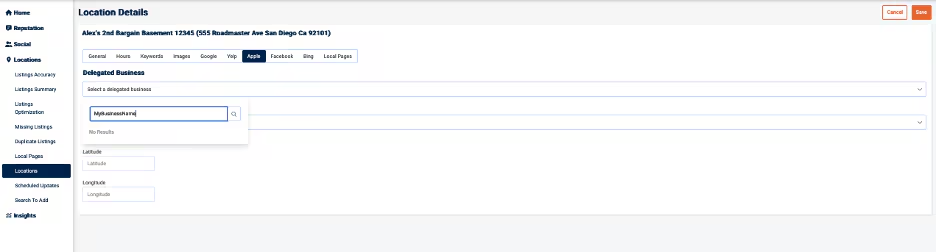
- Select Save.
Managing Apple Maps cover and gallery images in LocationHQ
Alchemer users who have delegated their company as a partner in Apple Business Connect can add or update cover and gallery images through LocationHQ. Note that you can’t manage logos through LocationHQ.
To update a cover or gallery photo, follow these steps:
- Login to your Alchemer account in LocationHQ.
- Select Location > Locations to display the Locations page.
- On the Locations page, select the location for which you want to manage cover or gallery photos.
- On the Location Details page, select the Apple tab.
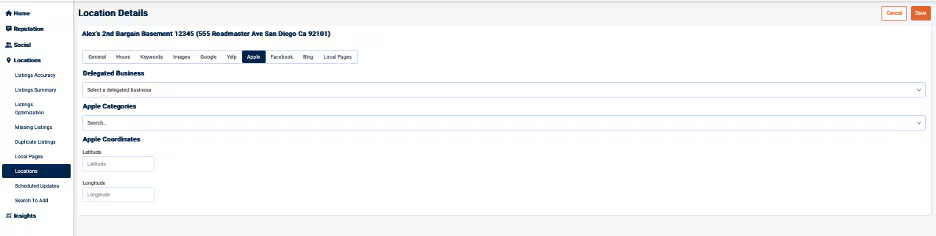
- Use the Cover Photo or Gallery Images fields to manage the photos. In this example, we’re uploading an image to add to the Gallery Images by selecting the plus sign in the Gallery Images field. The Select or Upload dialog box appears.
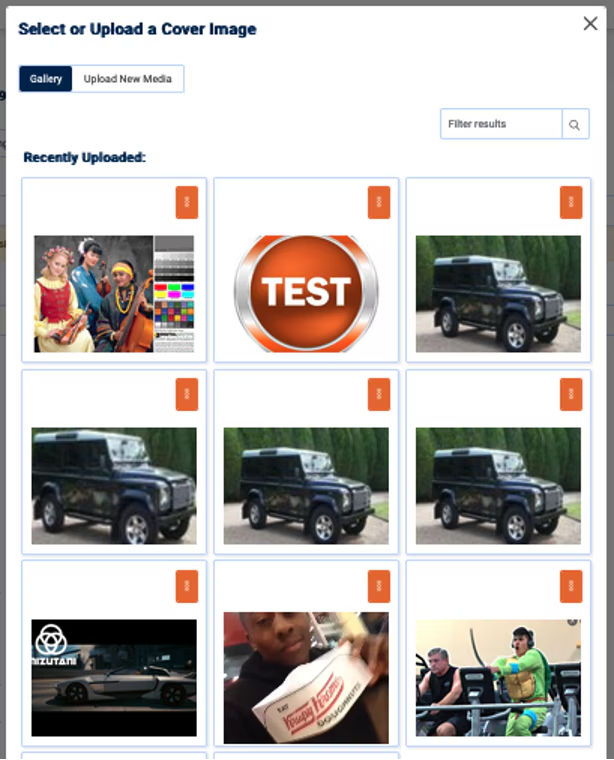
- Select the photo you want to add from the Gallery tab, or select Upload New Media to upload an image from your computer or from another source. In this case, we select the coffee cup to add to the Apple Maps gallery. (See the section Cover and Gallery image size requirements for details on image requirements.)
 Note that you’ll see only the images that have been added to the Apple Maps listing through LocationHQ when you manage images in LocationHQ.
 - Select Save. You’ll receive a notification of success.

 Note that you’ll see only the images that have been added to the Apple Maps listing through LocationHQ when you manage images in LocationHQ.
Apple Maps Cover and Gallery image size requirements
Image size requirements for Apple Maps cover and gallery images are described in the tables that follow.
Table 1. Cover photo requirements
| Minimum dimensions | Maximum length | Aspect ratio | File format |
| 1600x1040 | 4864 | 1.54:1 | JPEG or PNG |
Table 2. Gallery image requirements
| Minimum length | Maximum length | File format |
| Greater than 100 | Less than 4864 | JPEG or PNG |
Notes on listing details needed for Apple Maps
Apple requires that phone number, business name, and address match the business location’s website. If the information doesn’t match on both the location’s website and on Alchemer, Apple might not update the information.
Apple requires latitude and longitude (Lat/Long) coordinates for locations. If you find a listing hasn’t been published when expected, it might be because either the Lat/Long or Categories for the listing is missing.
Note that Alchemer can’t control the differences in appearance between Maps on iPhone and Maps on a desktop or through a search engine, which are attributable to the Apple design.
