Overview
Klaviyo is a marketing automation platform used by organizations to manage customer profiles and send email marketing. It stores profile data and tracks each profile's marketing consent so brands only message people who have opted in.
Common uses for the Alchemer Klaviyo integration
- Personalize surveys using profile details from Klaviyo
- Automatically update Klaviyo profiles when a response is submitted
- Subscribe or unsubscribe contacts from email marketing based on their survey answers
- Add consenting contacts to a specific Klaviyo list
- Reduce manual data entry and keep Klaviyo in sync with survey-driven updates
What can the Alchemer Klaviyo integration do?
You will need
- A Klaviyo private API key. See Klaviyo Authentication.
- An Alchemer plan that includes integrations with the Integration Manager permission enabled.
- The Klaviyo integration is available for purchase as an add-on. Contact us if you are unsure if your plan includes integrations.
Setup Alchemer Klaviyo integration in surveys
Klaviyo | Get Profile
You will need:
- A Klaviyo private API key
- A survey field containing the value used to look up the Klaviyo profile (e.g., email address)
- Survey fields (e.g., Hidden Values) to store the data returned from Klaviyo
Configure the action
- Open your survey in Survey Builder.
- Select Add New: Action.
- Note: This action cannot be added to the first page of the survey.

- In the Add Action modal, scroll to the Integrations section and click Add for Klaviyo.

- Note: If you haven't purchased any additional integrations, you will see the screen below instead.

- Select Klaviyo | Get Profile.


- Click Next on the overview screen.

- Klaviyo | Authentication: Select an existing authentication or create a new one.

- Klaviyo | Sample profile: Enter the email address of an example profile in Klaviyo. Alchemer uses this profile to load the list of Klaviyo profile fields. This field is required.

- Klaviyo | Find profile: Select the survey field used to find the profile in Klaviyo. Profile Email is usually the best choice, but any field in the dropdown can be used.
- Tip: To create fields to map, add a survey question that collects the value (e.g., the customer's email address) or add a Hidden Value. Hidden Values can be mapped to Klaviyo fields and used as merge codes in your survey.

- Klaviyo | Get data back: Map the Klaviyo profile fields you want returned to fields in your survey. These values can personalize survey questions or drive logic.

- Save the action.


Klaviyo | Update Profile
You will need:
- A Klaviyo private API key
- A survey field containing the value used to look up the Klaviyo profile (e.g., email address)
- Survey fields containing the data you want to write to the Klaviyo profile
Configure the action
- Open your survey in Survey Builder.
- Select Add New: Action, then add the Klaviyo integration from the Integrations section of the Add Action modal.
- Select Klaviyo | Update Profile.

- Click Next on the overview screen.

- Klaviyo | Authentication: Select an existing authentication or create a new one.

- Klaviyo | Sample profile: Enter the email address of an example profile in Klaviyo. Alchemer uses this profile to load the list of Klaviyo profile fields. This field is required.
- Klaviyo | Find profile: Select the survey field used to find the profile in Klaviyo. Profile Email is usually the best choice.

- Klaviyo | Update profile: Map survey fields to the Klaviyo profile fields you want to update. The survey data is written to the matching profile.

- Save the action.

- Optional – Get data back: After the action runs, data about the action can be mapped back to fields in your survey. These fields are intended for custom scripts or for troubleshooting what the request returned.


Klaviyo | Update Marketing Consent
You will need:
- A Klaviyo private API key with Lists, Profiles, and Subscriptions access
- A survey field containing the contact's email address
- An email marketing consent question (e.g., Yes/No)
- Optional: the Klaviyo list to subscribe profiles to
Configure the action
- Open your survey in Survey Builder.
- Select Add New: Action.
- In the Add Action modal, scroll to the Your Integrations section.
- Select Klaviyo.
- Select Klaviyo | Update Marketing Consent.
- Klaviyo | Authentication: Select an existing authentication or create a new one.
- Klaviyo | Select list: (Optional) Select the Klaviyo list to record consent against under Select Klaviyo List, then select the same list under Confirm List.
- If no list is selected, subscribes follow your Klaviyo account's default opt-in setting.
- Data prep options: Choose whether to strip HTML tags from inputs before they are sent to Klaviyo.
- Klaviyo | Map consent fields: Map the survey questions to Klaviyo fields.
- Map the question holding the contact's email to email.
- Map the email consent question to email_marketing_consent.
- Note: Consent answers are read as subscribe (e.g., Yes, True, Opt in, Subscribe, Accept, I agree) or unsubscribe (e.g., No, False, Opt out, Unsubscribe, Decline). Blank or unrecognized answers make no change.
- Note: Unsubscribes are account-wide for email marketing and affect all lists the contact is in.
- Klaviyo | Map returned data: Select the Klaviyo fields you want returned (e.g., email_marketing_consent, list_id) and metadata fields (message, status code). The consent field returns SUBSCRIBED, UNSUBSCRIBED, NO CHANGE, or FAILED.
- Save the action.
Status codes
- 200: Marketing consent successfully sent to Klaviyo, or no consent change was requested
- 400: The email address was missing, or the Klaviyo API returned an error
Testing and Troubleshooting
Testing and Validation
How to test
- Submit a survey response with data that triggers the integration action.
- Confirm the expected profile activity in Klaviyo (retrieved, updated, or consent changed).
- Use returned metadata fields to validate successful behavior.
How to verify results
- Inspect the affected profile in Klaviyo.
- Ensure all retrieved or updated values match expectations.
- For consent updates, check the profile's email consent status. Klaviyo processes consent changes asynchronously, so allow a short delay. On a double opt-in list, the profile stays pending until the contact confirms.
Monitoring Integration Activity
Where to find logs
- Go to Results → Individual Responses.
- Select the response you want to inspect.
- Open the Action Log tab.
What logs display
- Success or failure status
- Timestamp
- Input and output values
- Returned status codes from Klaviyo
Troubleshooting
Authentication issues
- Invalid or revoked private API key
- API key is missing the access the action needs (Klaviyo returns a 403 error)
Lookup failures
- No Klaviyo profile matches the lookup value
- Sample profile email doesn't exist in Klaviyo, so profile fields can't load
Consent not updated
- Email address missing when a consent answer is provided
- Consent answer blank or not recognized as subscribe or unsubscribe
- Profile still pending double opt-in confirmation
Mapping errors
- Email not mapped to email or consent not mapped to email_marketing_consent
- Selected list and confirmed list do not match
FAQs
What permissions do I need?
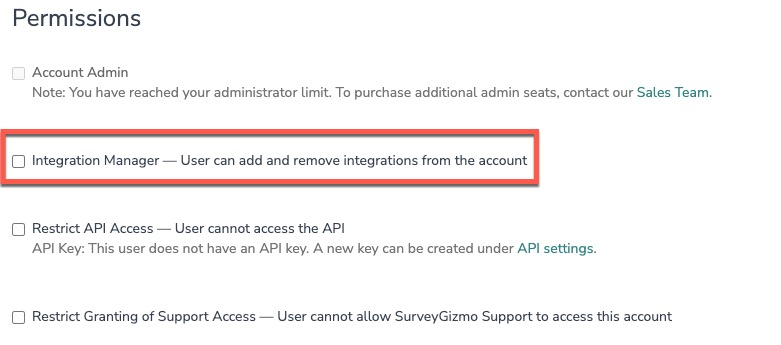
The Integration Manager permission in Alchemer and a Klaviyo private API key. If you don't have Integration Manager, an account administrator can grant it from the Users tab under User Management.

When does the integration run?
In real time when a survey response is submitted.
Can I use multiple Klaviyo actions in one survey?
Yes. Actions can run independently or in sequence.
Do I have to select a list for Update Marketing Consent?
No. Without a list, subscribes follow your Klaviyo account's default opt-in setting, and unsubscribes apply account-wide for email marketing.
Why did my consent update return a 403 error?
Your Klaviyo private API key is missing Lists, Profiles, or Subscriptions write access. See Klaviyo Authentication.
Why isn’t my data updating?
Check the Action Log for lookup issues, mapping mismatches, or API errors.
What if I need additional functionality?
Contact Alchemer Support for enhancement requests.
